Listening (the website)
Your page — profile, artist page, albums and playlists are ONE page
What it is. Since 30 September 2026 a person on Farooq Music has ONE page. If you have an artist page, that page is your page: your photo, your banner, your name, your city and country, your links, your gallery, your songs, your albums and your playlists live there together. A listener without an artist page has the same page at /u/your-address. Everything you change in Edit profile shows on the page at once — the page, the song cards, the player bar and the artist line all read from this one profile.
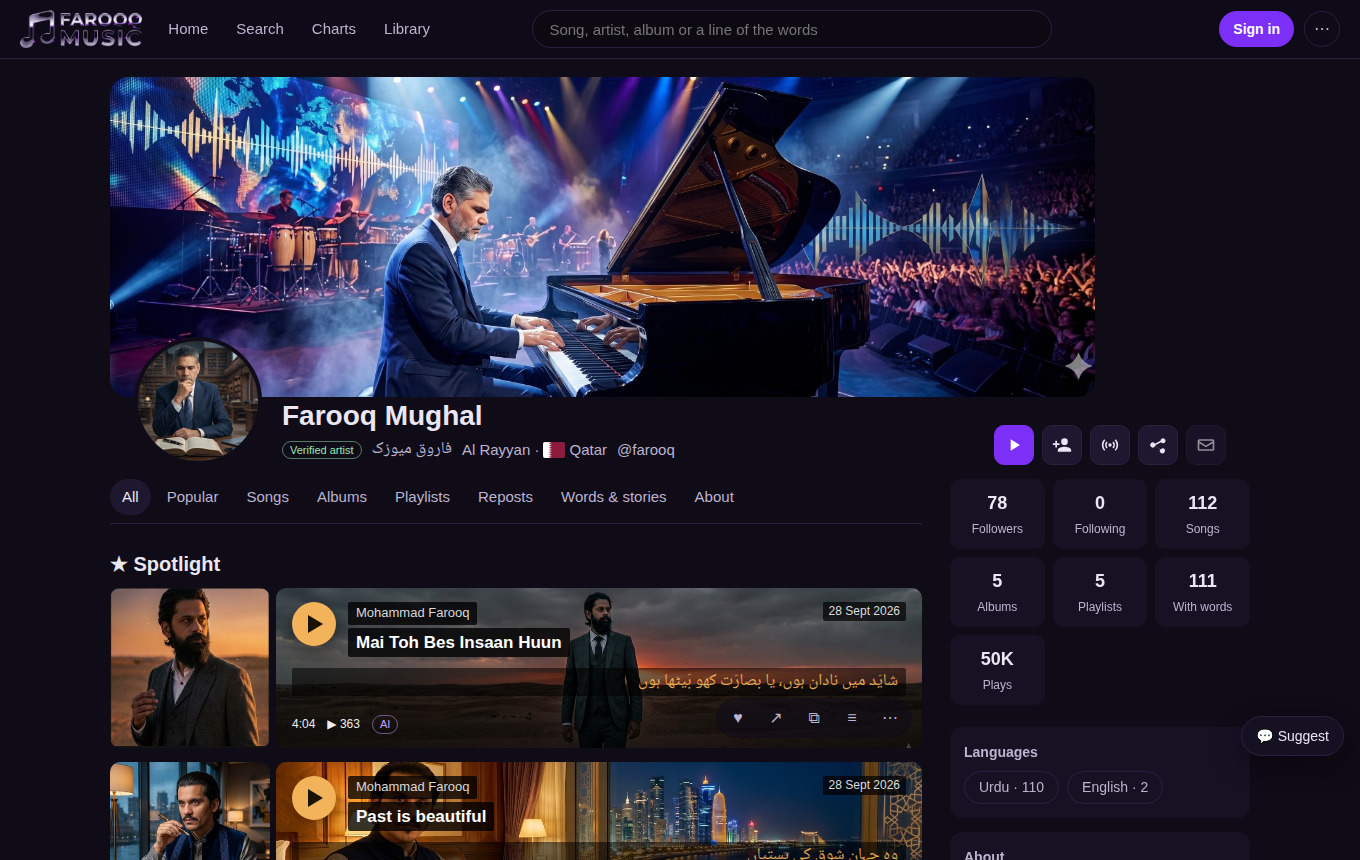
Who sees it. Everyone sees the page. Only you see the edit page and the drafts.
Step 1 — Open your page
Sign in, open the avatar menu (top right) and choose My page — or use the strip at the top of Studio, Library and Account. An artist lands on the artist page; a listener lands on /u/…. Both are the same page for the same person.
Step 2 — Edit everything in one place
Press ✎ Edit page on your page (or Edit profile in the avatar menu). The edit page opens with your banner and photo shown in exactly the frame the page uses — what you see there is what everyone sees, the same size.
- Banner — choose a picture; it is shown in the frame at once, then saved. The stored banner is 1600 × 520; the frame keeps that shape on every screen.
- Photo — square, 400 × 400.
- My artist page (artists only) — the page's name, its Urdu name, its own introduction and country. Photo, banner, city, links and gallery come from the person section below, so they are never written twice.
- Profile address (farooqmusic.com/u/…) — while you type a new one the box says at once ✓ Available or ✗ Taken; press Save address right next to it.
- Me — the person behind the page — names, address, city, country, introduction, website, phone, links, gallery, the show-e-mail / show-phone switches.
Step 3 — Playlists
Any signed-in person makes playlists: Library → Playlists → New playlist (choose Public, Unlisted or Private), or ≡ Add to playlist on any song. Public playlists are shown on your page (the Playlists tab of an artist page, the Playlists section of a listener's page). Unlisted ones open only with the link. Private ones are yours alone. Open a playlist and press ✎ Edit to change its title, words or who may see it.
Step 4 — Albums (artists only)
An album belongs to an artist page. Open your page → Albums → + New album. Give the title (and its Urdu title), the words, the release date, a square cover, tick the songs and set their order with ▲ ▼, and switch Published on. A published album is on your page, in search and at its own address /album/…; a draft is yours alone. The ✎ on an album card opens the same editor; Delete removes the album — the songs stay.
Step 5 — The song rows on your page
Every song on your page is a wide row: the cover on the side, the song's own banner behind the title, the artist line, the genre, the date, the length, the plays, and the buttons ♥ share · copy link · add to playlist · ⋯. The owner also sees ✎ which opens the song's edit dialog.
Step 6 — Every language, every script
The website speaks every language listed on the Languages page (the ⋯ menu → Language, or the footer). A song title, a name, a line of words written in any script of the world — Devanagari, Bengali, Tamil, Chinese, Hebrew, Cyrillic and the rest — is shown in that script's own font and runs in its own direction, whatever the page language. Adding a language to the site is one file in the lang folder; adding a script's font is one file in public/site/fonts and one line in fonts.json.
Pictures for every step are added after the package is live (the screens exist only from then).