Accounts & security
Two-step sign-in (authenticator app)
What it is. After your password (or Google / Apple), Farooq Music also asks for a 6-digit code that an authenticator app on your phone makes every 30 seconds. Even if someone learns your password, they cannot get in without your phone. It is optional — and strongly recommended. Everything stays on Farooq Music's own server; no outside service is involved.
You need an authenticator app on your phone: Google Authenticator, Microsoft Authenticator or any other app that reads a QR code for "time-based codes".
Step 1 — Open Settings
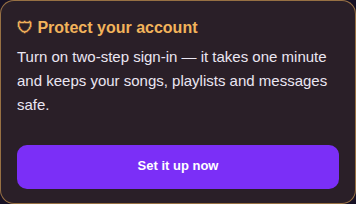
Sign in and open Settings (your account page). While two-step sign-in is off, a card at the top says Protect your account — press Set it up now, or go down to Two-step sign-in and press Turn on two-step sign-in.
Step 2 — Scan the code and type the 6 digits
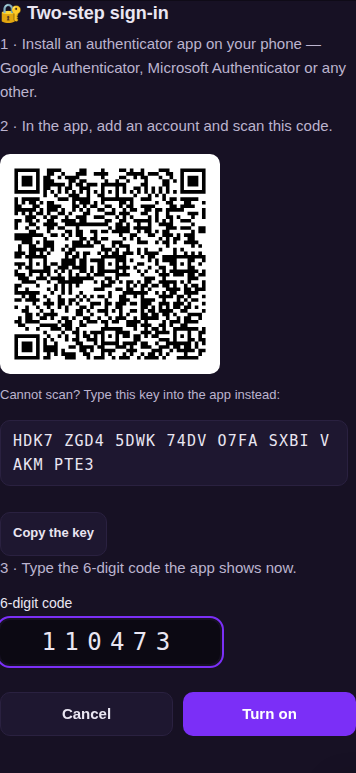
In the authenticator app, add an account and scan the square. On the phone itself you can tap the square, or type the key shown under it. Then type the 6-digit code the app shows now and press Turn on.
Step 3 — Keep your backup codes
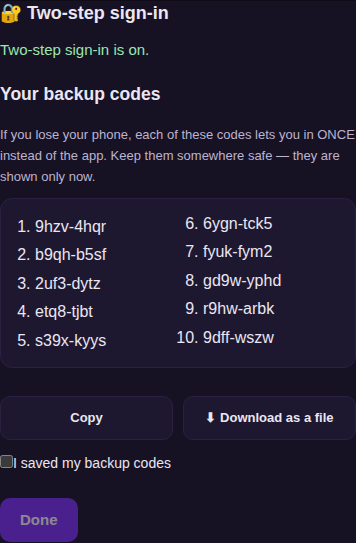
You get ten backup codes. Each one lets you in once if you lose your phone. They are shown only now: press Copy or Download as a file, keep them somewhere safe, tick I saved my backup codes and press Done. You also get a notice on the site and by e-mail.
Step 4 — It is on
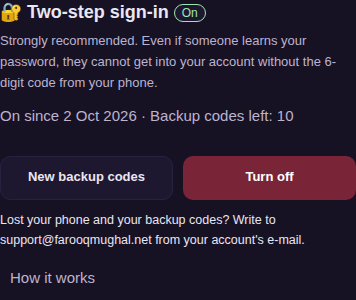
Settings now show On, since when, and how many backup codes are left. Here you can make New backup codes (the old ones stop working) or Turn off — each needs a code.
Signing in from now on
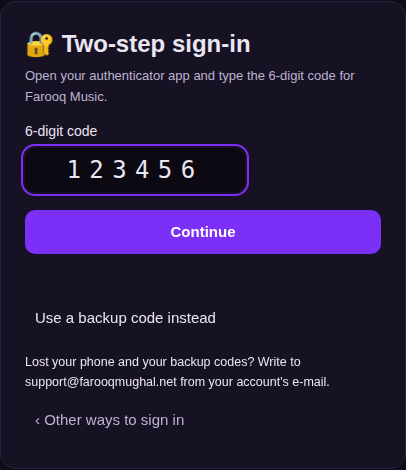
After the password (or Google / Apple) the site asks for the code. Open the app and type the 6 digits. No phone? Press Use a backup code instead. Five wrong codes end that sign-in; many wrong codes in an hour make the account wait a while.
Lost your phone and your backup codes?
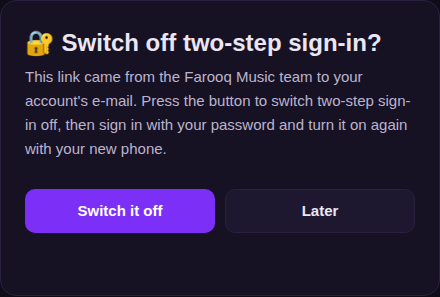
Write to support@farooqmughal.net from the e-mail address of your account. The team sends a one-time link to that same e-mail (it works once, for 60 minutes). Open it, press Switch it off, then sign in with your password (or Google / Apple) and turn two-step sign-in on again with your new phone. You are told on the site and by e-mail. If you did not ask for such a link, ignore it — nothing changes.
More sign-in problems: Can't sign in? Check this first.
Admin and worker pages
The admin and worker pages ask for the same code after the password, in a small box.
Remember this device. When you type the code, keep the tick on Remember this device for 7 days. For the next 7 days that browser or phone signs in with your password (or Google / Apple) alone — the code is not asked there again. Another device still asks for the code. If you switch two-step off and on again, every device asks once more.