Team & workers
Team & workers — from invitation to payment
Moved (1 Oct 2026). The team is run on the website in Studio → Team — invitations, members, kinds of work, rates, tasks, approvals and payments. The platform owner's old team and his artist page's team are now ONE team. The admin site keeps only the platform's own tools (people, security, backups, changes, errors).
What it is. The TEAM page is where the people who work on the platform are managed — like the team pages of Spotify for Artists, Apple Music for Artists or YouTube Studio. Nobody can be given work until they are invited by e-mail and have accepted. Every member has a role, a list of the kinds of work they may be given, an agreed charge per kind of work, and a history of everything they did. Today there is one team (the platform's); later every artist gets a team of their own on the same page.
Who sees it. The admin, and a team leader (see roles below). A worker never sees this page and never sees any rate.
Open it: admin.farooqmusic.com/en/team
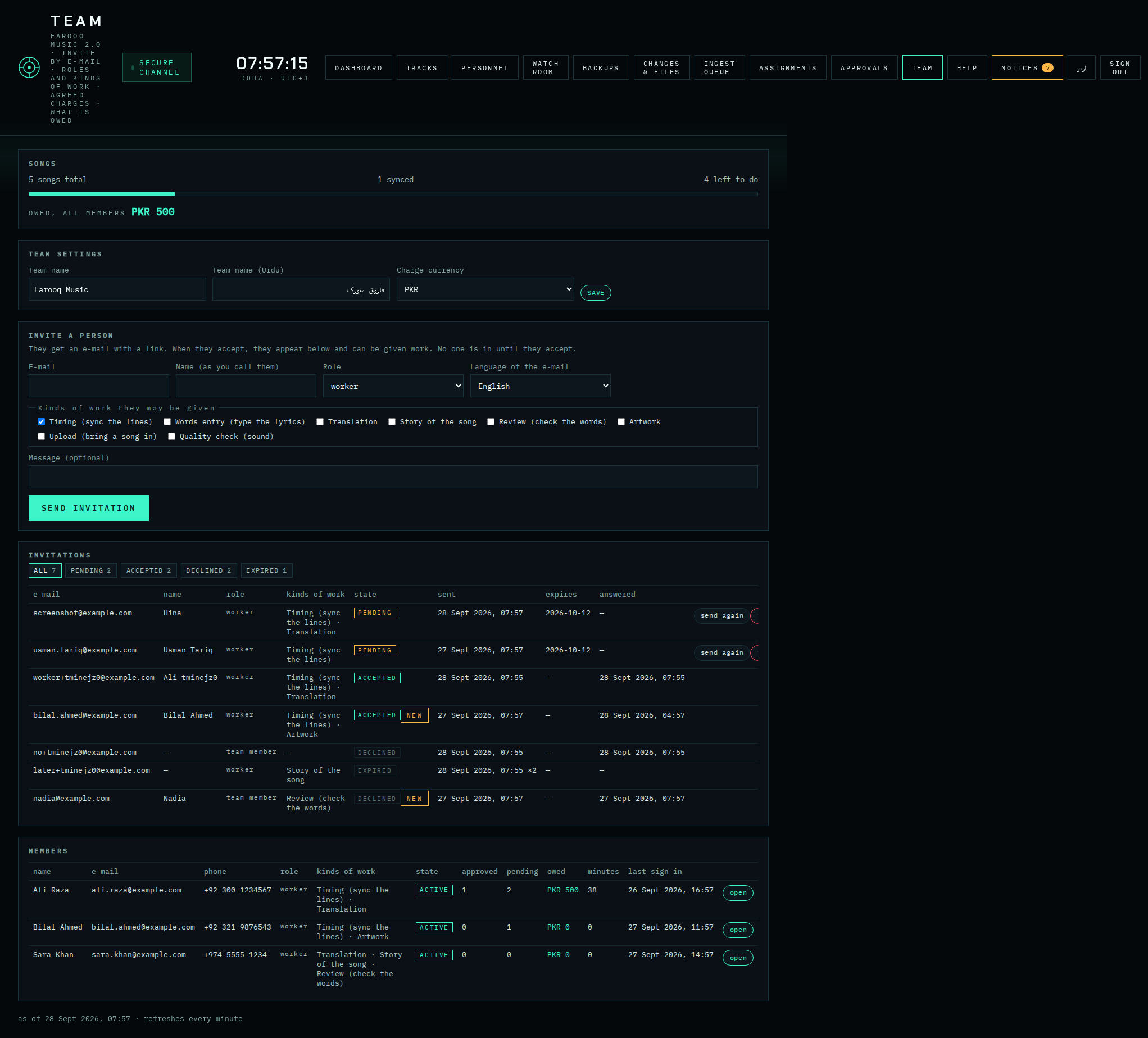
1 · The top of the page
- SONGS — how many songs there are, how many already have timed words, how many are left. Under it, OWED, ALL MEMBERS — what the team owes right now, per currency (approved work × the agreed rate).
- TEAM SETTINGS — the team's name (English and Urdu) and the charge currency (PKR, QAR, SAR, AED, USD, EUR, GBP, INR). Every new rate starts in this currency; each rate can still be set in another one.
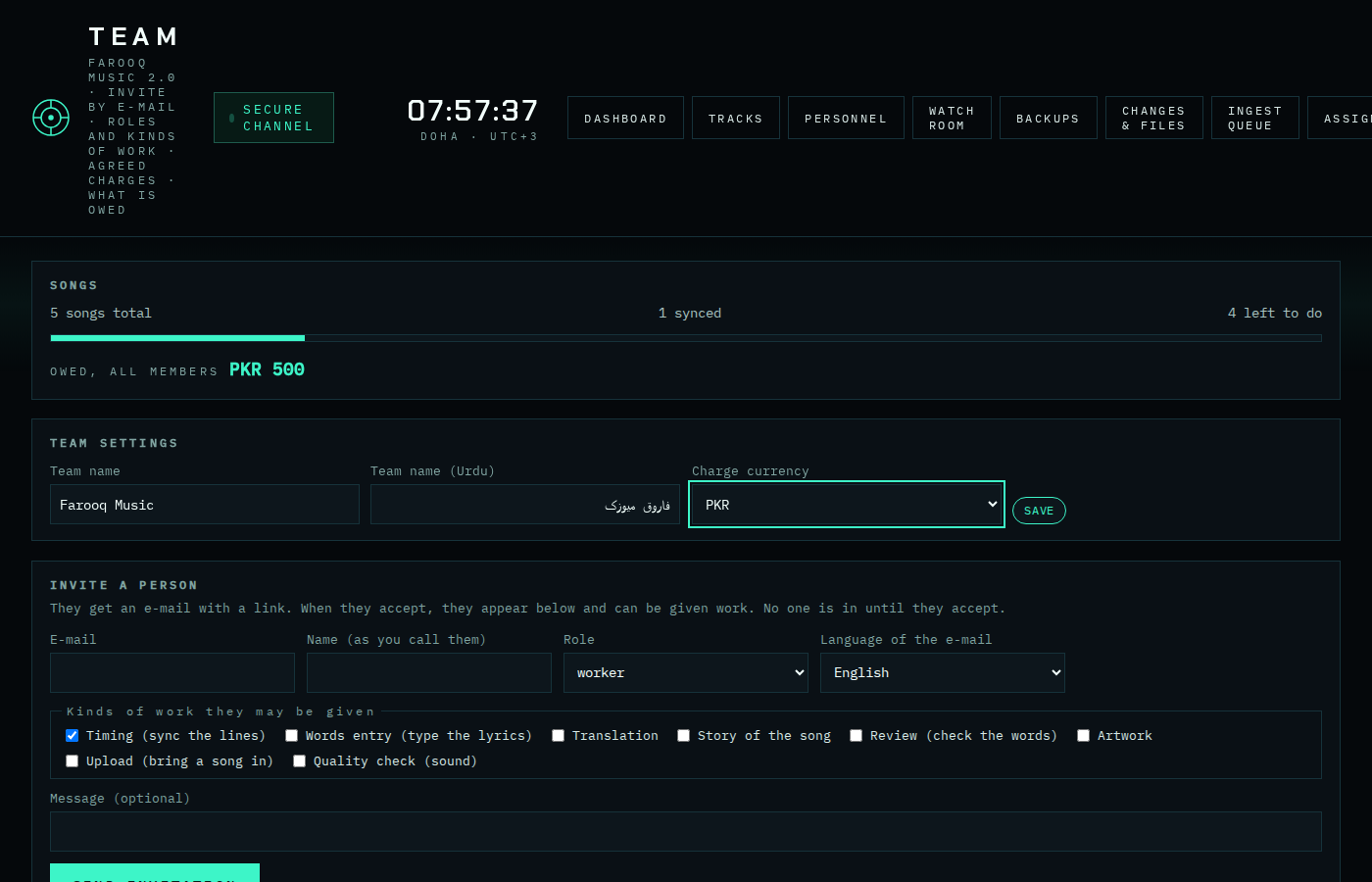
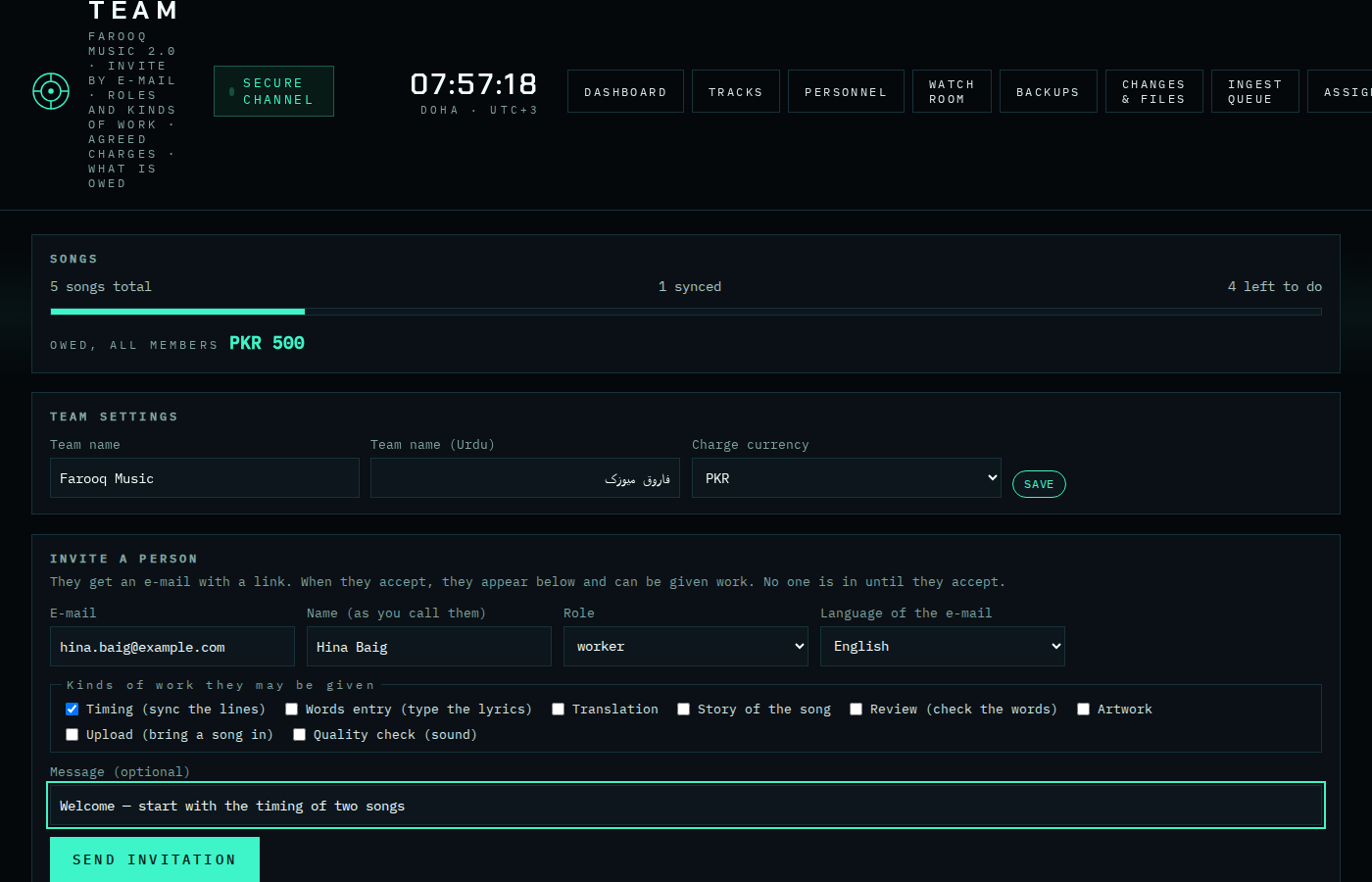
2 · Invite a person
- Type the person's e-mail and, if you like, their name (as you call them).
- Choose the role: team leader (may manage the team), team member (may see the team page, edit words and pictures, see numbers), worker (does the work given to them, nothing else).
- Tick the kinds of work they may be given: timing, words entry, translation, story, review, artwork, upload, quality check. A song can be given to them only for a ticked kind.
- Choose the language of the e-mail (Urdu / English / Arabic) and, if you like, a short message.
- Press SEND INVITATION. The person gets an e-mail with a link that works for 14 days, once.
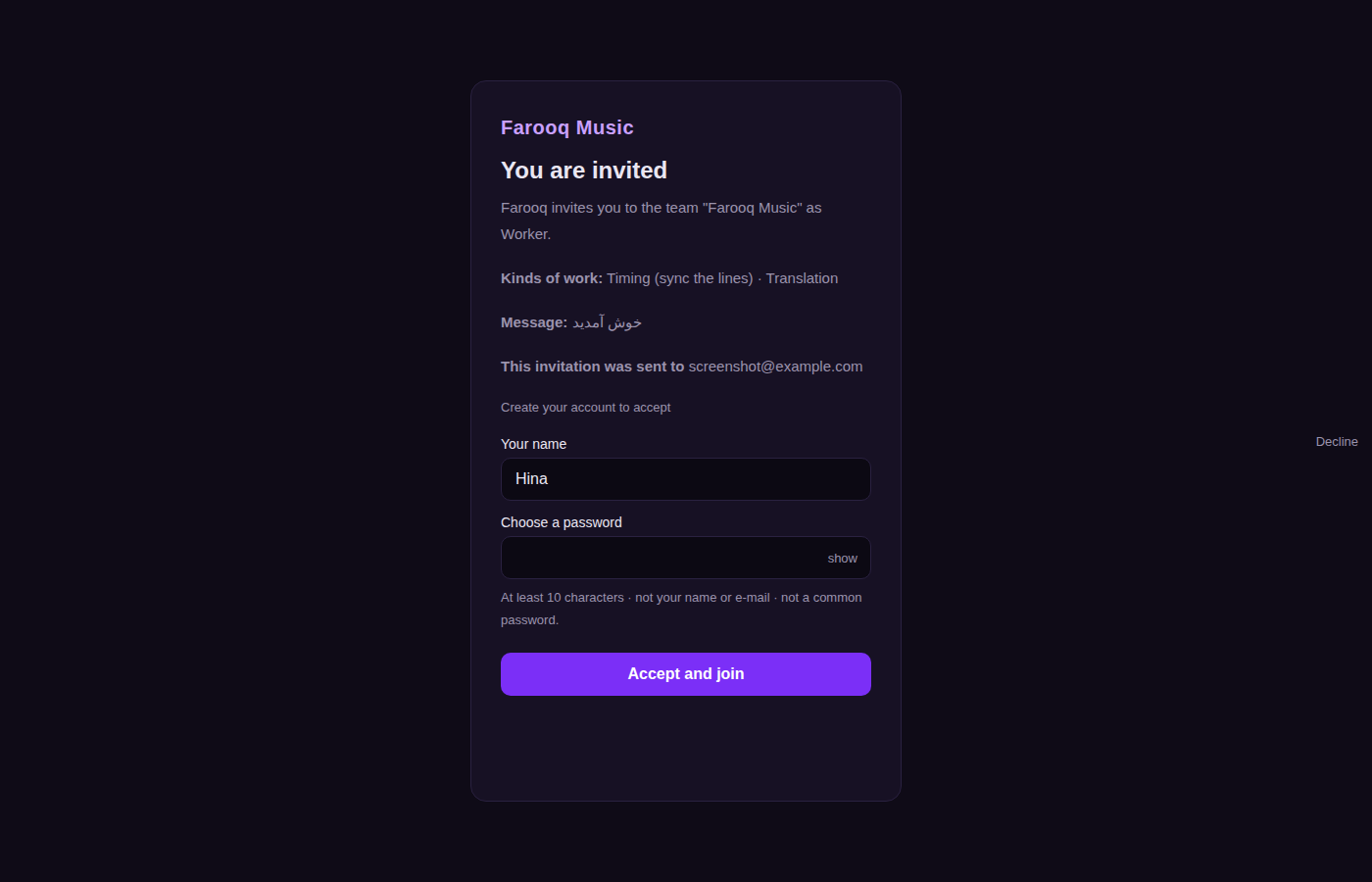
3 · What the invited person sees
The link opens the invitation page. It shows who invited them, the team, the role, the kinds of work and your message. If they have no account yet, they create one right there (name + password); if they have one, they sign in with the same e-mail. Then Accept and join — or Decline.
When they accept: they become an active member, they get the worker sign-in, their e-mail counts as confirmed, they receive a welcome mail with the road to MY TASKS, and you get "Invitation accepted" in the bell NOTICES (plus a NEW badge on the TEAM button) until you open the TEAM page.
4 · Invitations
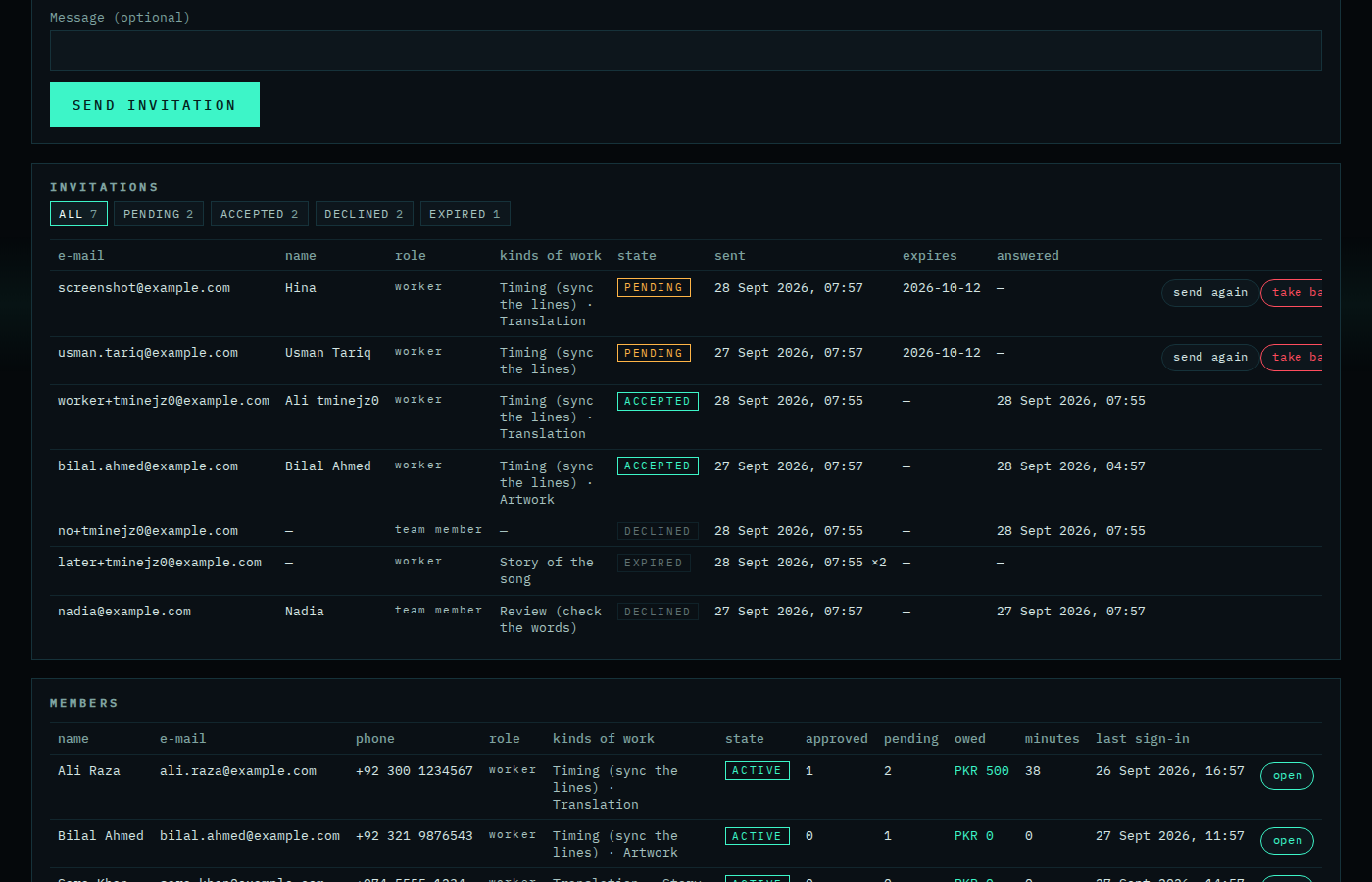
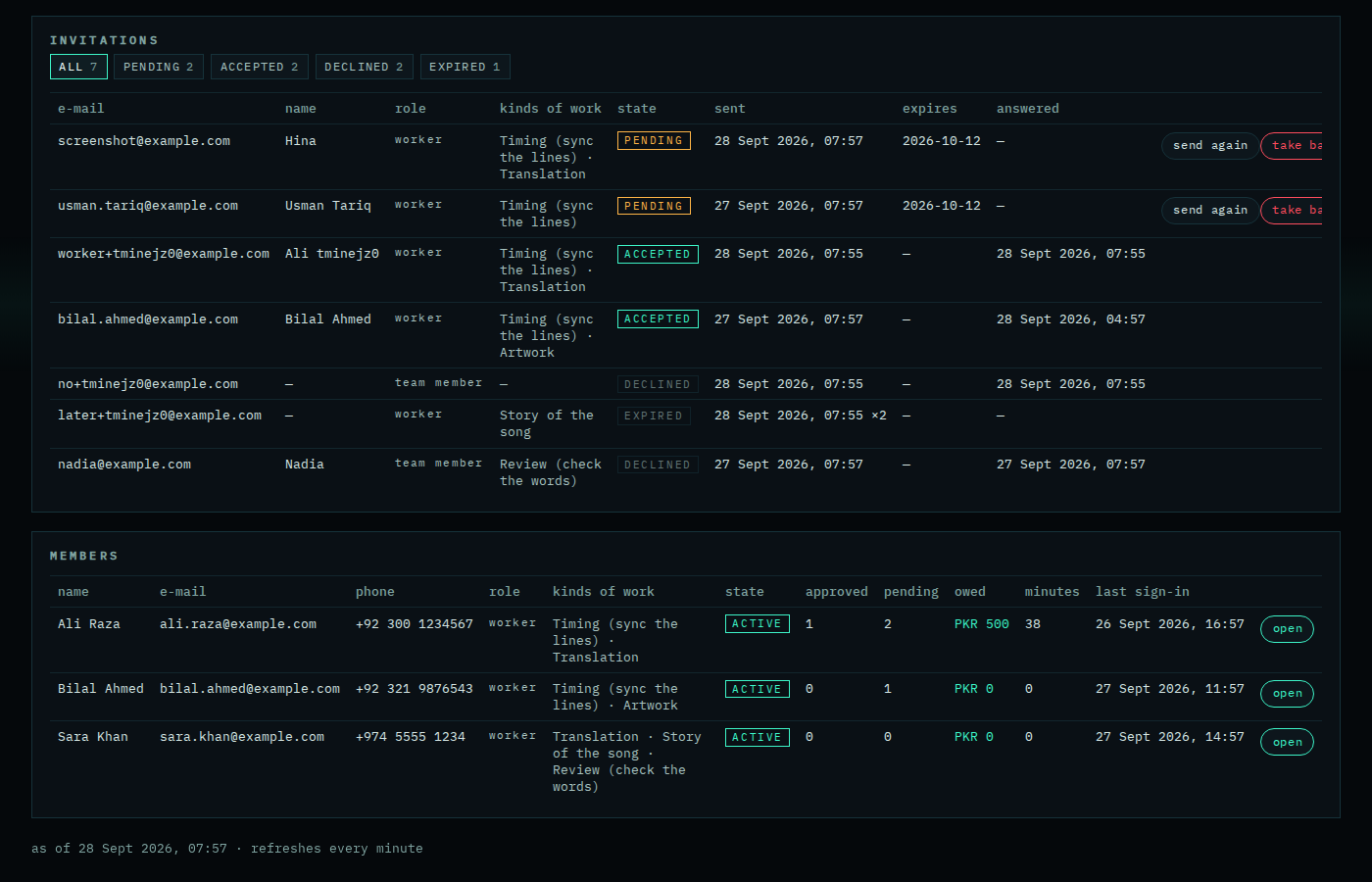
Every invitation with its state: PENDING (not answered yet), ACCEPTED, DECLINED, TAKEN BACK, EXPIRED. A pending one can be sent again (a new link, the old one dies) or taken back. The chips at the top filter the list.
5 · Members
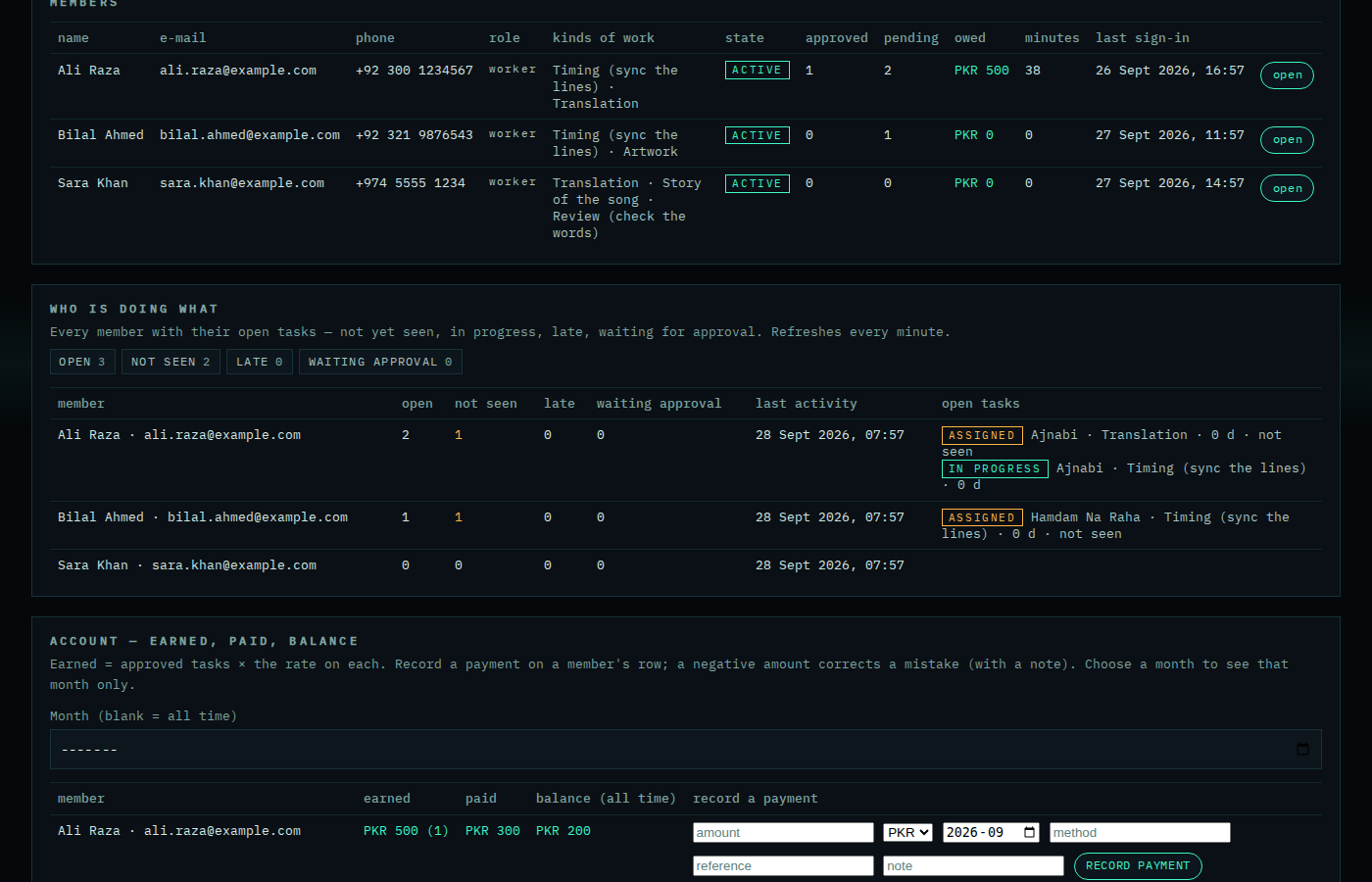
One row per member: name, e-mail, phone, role, kinds of work, state (ACTIVE / PAUSED), approved tasks, pending tasks, owed, minutes spent, last sign-in. Click a row (or open) for the member's card.
6 · A member's card
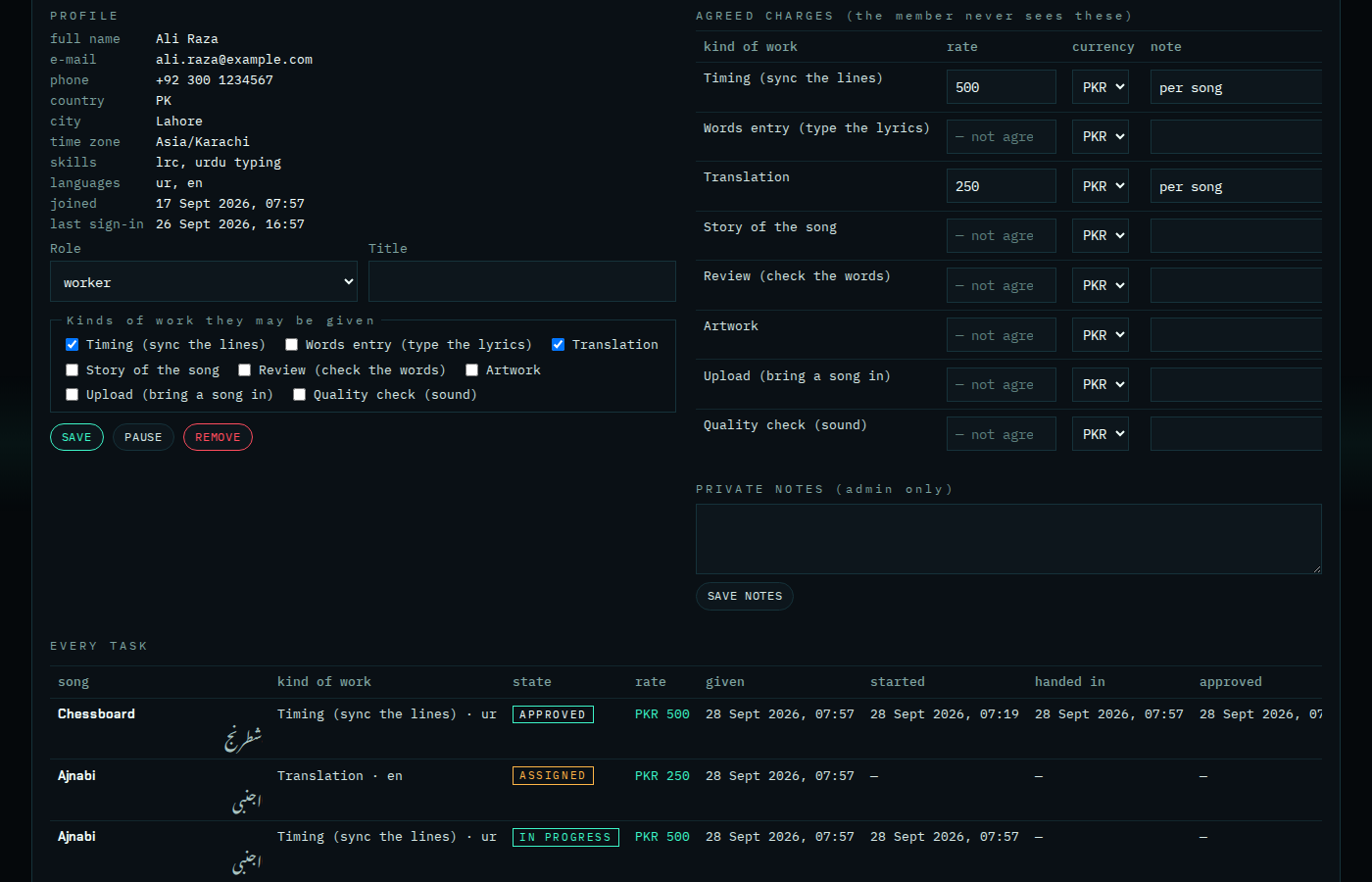
Left: the profile the member filled in themselves (name, phone, country, city, time zone, skills, languages), the role, a free title, and the kinds of work — change them and press SAVE. PAUSE stops new work being given (they still see their tasks); RESUME lifts it; REMOVE takes them out of the team, takes back their open tasks, and their worker sign-in ends.
Right: the agreed charges — one rate per kind of work, in any currency, with a note. Press SET on the row. The member never sees these numbers. Under it, your private notes about the member (admin only).
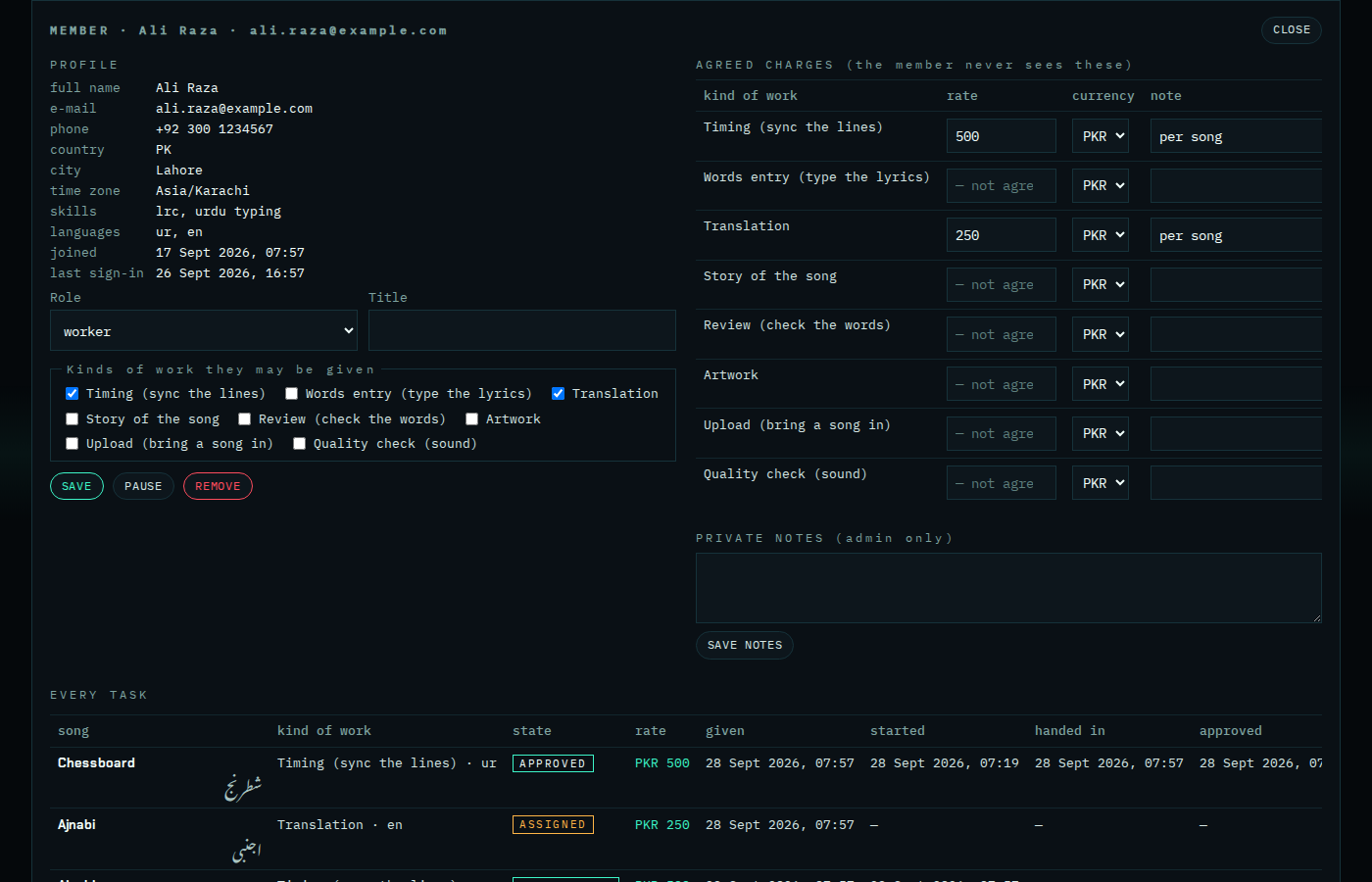
Bottom: every task of this member — song, kind of work, state, the rate written on the task, given / started / handed in / approved times, minutes.
7 · How the money is counted
- When a song is given, the member's agreed rate for that kind of work is written on the task (a snapshot). Changing the rate later changes only future tasks.
- Owed = every APPROVED task × the rate on it, per currency. A task that was returned, taken back or given on counts nothing.
- Minutes = from the member's first save to the moment they handed the task in; stamped at approval.
7b · Who is doing what
The board under the members: every member with their open tasks — how many not yet seen, how many late (past the due date), how many waiting for your approval — and their last activity. Refreshes every minute.
7c · The account — earned, paid, balance
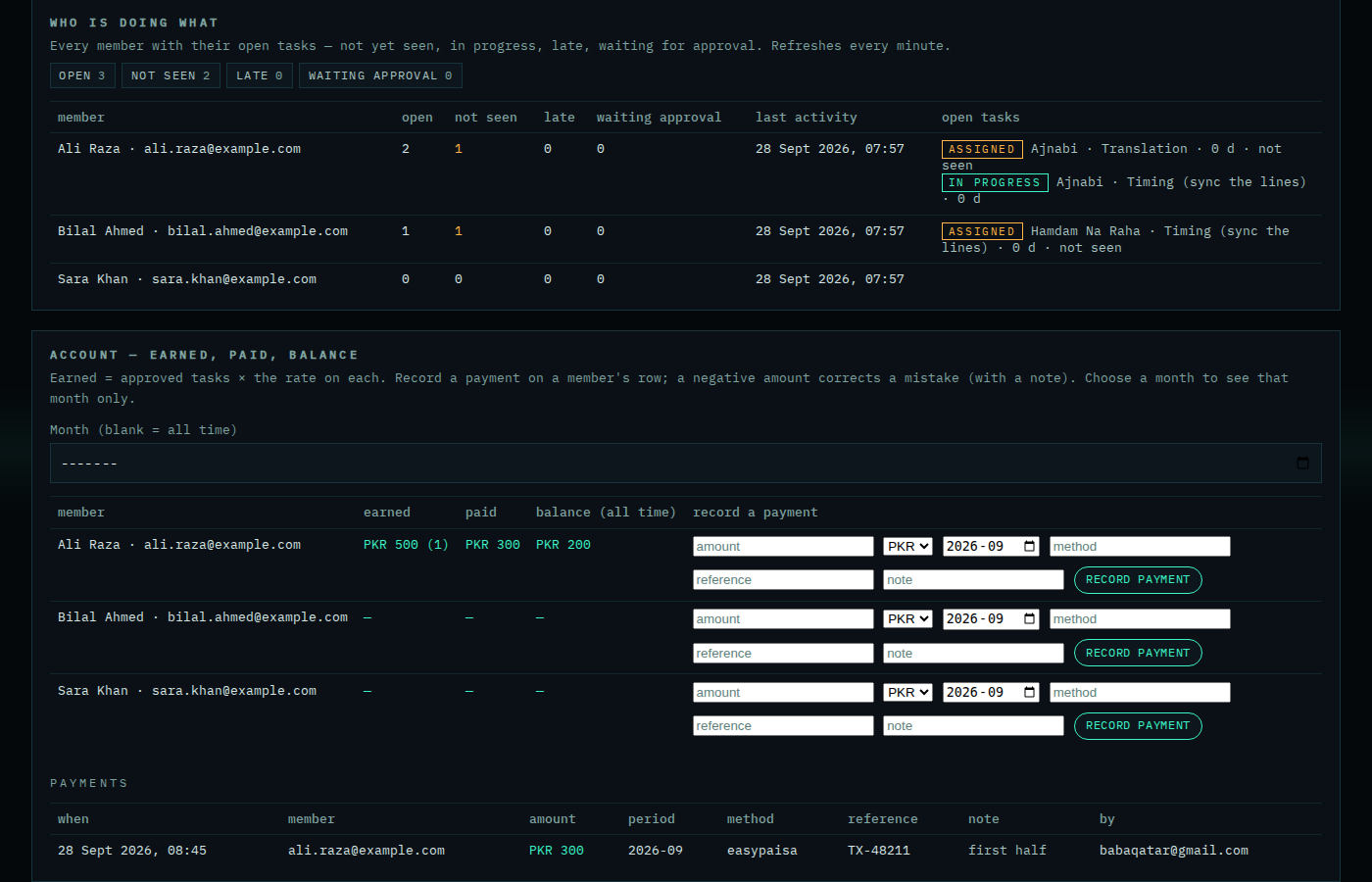
Per member and per currency: earned (approved tasks × the rate on each), paid, balance. Choose a month to see that month only. Record a payment on the member's row: amount, currency, period, method (bank, cash, easypaisa…), reference, note — the member is told by mail. A mistake is corrected with a negative amount and a note; nothing is deleted. Every payment stays in the list below.
The member's card also shows performance: approved, returned, the average minutes per task, the average days from given to handed in.
8 · Roles and what they may do
| Role | May do |
|---|---|
| Team leader | everything on this page: invite, remove, change roles and kinds of work, set rates, see what is owed; give and approve work; edit words, pictures, upload, publish; see numbers |
| Team member | see the team page (not the rates), do work given to them, edit words and pictures, see numbers |
| Worker | only the work given to them (MY TASKS) |
A member may get extra grants on top of their role (for example "may give work") — that is the custom role of YouTube, without a new role. New kinds of work and new grants are added by the platform in one line; nothing on this page has to change.
9 · Next pages
- Give a song to a member — the ASSIGNMENTS page, taking a task back, giving it to another member with a reason.
- MY TASKS — the worker's side — what the member sees, their profile, their notifications.
- Approvals — approving or returning what was handed in.