Songs & catalogue
Uploading a song — two steps, like SoundCloud, with the automatic checks
What it is. From 30 September 2026 every creator uploads from the website in two steps, the way SoundCloud does it. Step 1: drop the sound file. Step 2: the Track info opens — the artwork box on the left, the details on the right — with the checks answering at once (🔴 stops and says what to fix, 🟡 warns, 🟢 fine). Press Upload: the song is taken within seconds, prepared in the background, and goes live by itself the moment its sound and its cover are ready. Everything — even the artwork — can be added or changed later from the song's ✎ Edit.
Who does it. A creator with an artist page of his own (the song goes to that page). The admin may upload to any page.
Step 1 — Drop the sound file
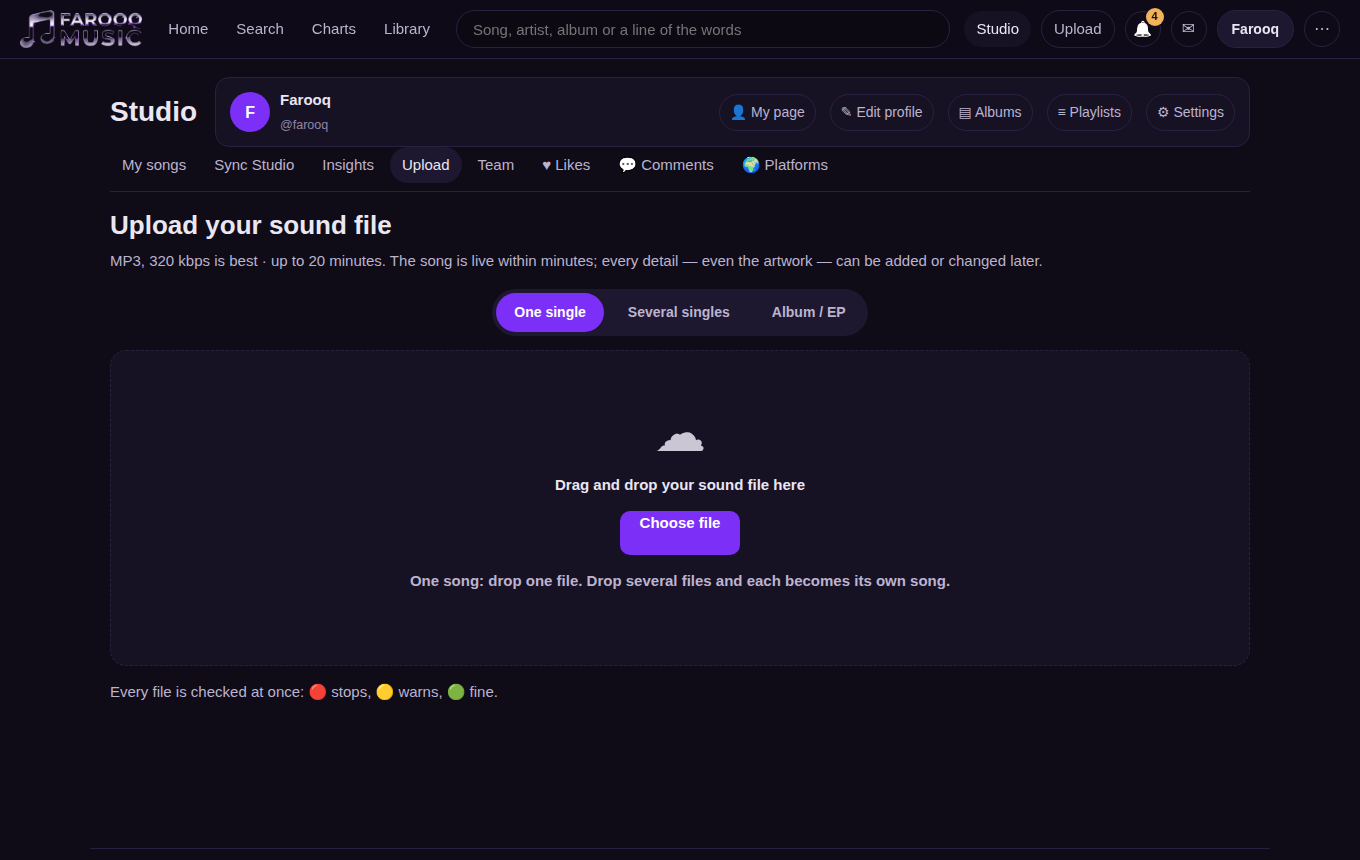
Studio → Upload (or ⇧ Upload in the top bar / the avatar menu). Drag the file onto the box or press Choose file. MP3 only, 320 kbps is best, up to 20 minutes. The file is checked at once: format, length, quality (a low bitrate or a mono file gives a yellow line), the same sound already on the platform (red), your allowance (red when the song would not fit).
Step 2 — Track info
The title is filled from the file name — correct it. Write the Urdu title if the song is in Urdu. The track link is made from the title. Main artist is your page (choose one if you have several). Pick the genre from the list (Ghazal, Qawwali, Sufi, Classical, Folk, Pop … or write your own), add tags (mood, style, keywords), a description (who wrote the words, who composed, where to find you), and the privacy: Public, Private (only you, your team and the people you send its private link), Followers only (your followers and people with its private link) — see Private songs and followers-only songs.
Artwork (left): a square JPEG or PNG, 3000 × 3000. You may upload without it — the song is kept but does not play until a cover is added (a yellow line tells you). A bigger picture of another shape is accepted and cut to the middle square (a yellow line tells you); a picture whose shorter side is under 1000 px is refused (red). 1000–3000 → yellow. A banner (1240 × 400) is optional — a bigger picture is cut to the wide shape; smaller than 1240 × 400 is refused.
Advanced details (open the section): buy link, record label, release title, release date, publisher, composer, lyricist, ISRC, contains music, explicit, made with AI, P line, C line. Permissions: downloads, offline listening, feed, embed code, app playback, comments, show comments, show insights. Words & story: paste the lyrics (one line per line) and the story — they show on the song page at once (All languages / Story tabs); the Sync Studio stamps the times later for the karaoke view. Credits: composed by, written by, produced by, sung by … and Made with (the AI tool) — the Credits tab of the song page; change them any time from ✎ Edit → Lyrics & story. Audio clip: the song's own waveform appears as soon as the file is read — drag the 20-second frame to choose the preview. Licensing: all rights reserved or a Creative Commons licence. What is this recording: your own work, made with AI, a cover (name the original's rights holder), licensed (name the holder), or public-domain words with your music — kept word for word with your name and the time.
Scheduled (new 1 Oct 2026): choose Schedule public release and pick the date and time on your own clock. Until then the song is private (only you, your team and people with its private link); at that minute it becomes public by itself — on the lists, your artist page and the search — and you get a notice. Change or cancel the time any time from ✎ Edit → Basic info → Privacy.
Store-ready answers (new 1 Oct 2026)
The same questions DistroKid and the music stores ask, so a song on Farooq Music can later go to Spotify, Apple Music or YouTube Music without being typed again.
- Version (Track info): Normal for the original. Radio edit, Acoustic, Live, Remix, Instrumental, Unplugged, Slowed & reverb — or Other with your own words. It shows after the title in brackets, for example Pyaas (Acoustic).
- Second genre (optional): a second style from the same list.
- Made with AI stays ONE switch. When it is on, three small ticks appear — Music, Voice, Words — all ticked. Untick the part a person made. The stores ask for each part separately.
- Instrumental — no words: the Lyrics tabs are hidden on the song page.
- This song was released before: give the first release date and the UPC (barcode) of that release.
- ISRC: 12 characters (2 letters, 3 letters or digits, 2 digits, 5 digits) — dashes are allowed. A wrong ISRC gives a red line; leave it empty if you have none.
- Credits: new roles — Featuring, Lead vocals, Background vocals, Guitar, Piano, Keyboards, Drums, Bass, Violin, Flute, Tabla, Harmonium, Sitar, Mixing engineer, Mastering engineer. A green line says store-ready when at least one performer (a singer or an instrument) and one producer are named — Apple Music needs both. A featured artist shows as feat. … under your name; never write "feat." in the title (a yellow line reminds you).
- The title: a yellow line appears for "feat." / "ft.", a year, or "(cover)" / "by …" inside the title — that information has its own place.
- A cover: choose A cover under What is this recording and write the original writer — the song page then says Cover · original by ….
- Where else is this song?: add the links of the same song on Spotify, Apple Music, YouTube Music, Deezer, JioSaavn, Anghami, TIDAL, SoundCloud or your DistroKid HyperFollow page. They show on the song page under Also on.
- The three promises (above the Upload button): no bots or bought plays · I made it or I am allowed to upload it · no other artist's name to mislead. One tick — Upload stays grey until it is ticked. The promise is kept on the song with the time.
- Your profile (✎ Edit profile → the artist part): Performing rights society (ASCAP, BMI, PRS, IPRS … or empty) and Publishing (100 % mine / shared) — asked once for all your songs. New link kinds for your store pages: YouTube Music, Deezer, Amazon Music, JioSaavn, Anghami, HyperFollow.
Every answer can be changed later from ✎ Edit (Basic info and Metadata tabs).
The checks that read your file (new 1 Oct 2026)
When you choose the sound, Farooq Music listens to the whole file once (it takes a few seconds) and writes what it finds as lines:
- Damaged file (red): the file has decoding errors — clicks or gaps. Export the song again, or send the WAV.
- Almost silent (red) or long silent parts (yellow).
- Clipping (yellow): the sound hits full scale and breaks in places.
- Loudness in LUFS: green between −18 and −8; quieter or louder gives a yellow line (streaming apps play at about −14).
- Made from a lower-quality file (yellow): the MP3 says 320 kbps but has almost nothing above 17 kHz.
- The same recording is already on Farooq Music (red): another file of a song that is already here (another bitrate or a WAV of it). Very close to another song (yellow): perhaps another version — choose the Version.
- The same cover: a picture that is already the cover of 1 or 2 songs gives a yellow line; of 3 or more songs a red line — choose another picture.
- Spelling and language: Arabic letters typed instead of Urdu ones (ي ك ه instead of ی ک ہ) and Arabic-Indic digits, a title in CAPITALS, a letter repeated 4 times, an emoji in the title, a name almost like one of your other songs, words in Latin letters for an Urdu song, very long lines of words. Where the window can correct it, the line has a Correct button — nothing is changed until you press it.
When the check asks for the WAV. If the MP3 is damaged, clipped, low quality or made from a lower-quality file, an orange box appears: Our check asks for the WAV of this song. Press Choose the WAV file and pick the WAV (the original export from your music tool, for example Suno's WAV download). The line then says WAV taken as your master: Farooq Music makes the MP3 and the AAC for listening from it and keeps the WAV in your record. Without that box, artists upload MP3 only.
What the checks cannot do: recognise someone else's song from the whole world (that needs the world catalogues of YouTube or ACRCloud). They find songs and covers that are already on Farooq Music.
Several singles, or an album / EP (new 1 Oct 2026)
Above the drop box choose One single, Several singles or Album / EP, then drop the files (or press Choose file and pick many). Dropping several files on One single opens Several singles by itself.
- One row per song: its number, its own cover (press 🖼; in an album a song without its own cover uses the album's), the title (filled from the file name), the Urdu title, Words & story (open it to paste the words), and the checks of that file — 🔴 / 🟡 / 🟢 counts; press see the lines to read them. A row with a red line must be fixed (or removed with ×) before the window can upload.
- Album / EP: the album cover (3000 × 3000), the album's title and Urdu title, Album or EP, the release date and a description. Put the songs in order with ↑ ↓ or drag a row to its place. The songs of one album may share its cover — that never counts as a reused picture.
- For every song in this window (answered once): main artist, language, genre, who can listen (public, private, followers or scheduled with a time), made with AI (+ music / voice / words), what this recording is, and the three promises.
- Upload: the button says how many songs go up. They go one after the other; each row shows its own progress and then Track uploaded with a link. For an album, the album is made first, then every song joins it in order, and the album is published when the songs are in. Each song goes live by itself when its sound and cover are ready.
Every song can be changed on its own later from ✎ Edit; the album from Library → Albums.
Step 3 — Upload
The line above the button says: by uploading you confirm the recording is yours or you hold every right to publish it. Upload lights up when the sound and the title are there and no line is red. A bar shows the upload, then the page says Track uploaded with the song's card. In a moment it says Your song is LIVE — open the song, add the words (Sync Studio), edit the details, upload another. Yellow lines are kept on the song's card in Studio → My songs.
If something goes wrong
A red line before the upload: fix the file or the words and choose the file again — nothing was stored. The sound could not be prepared after the upload: export it again as MP3 and upload once more. Add a cover and the song goes live: press ✎ Edit details and put the cover in. Your allowance is 3 hours of sound (the admin can give you more).
Related
Replacing a song's sound, cover and banner · Sync Studio (the words and their timing) · Teams (who else may work on your songs)
Several songs at once — up to 5 (new 1 Oct 2026)
Choose up to 5 files in one go (an album may have more). Each song has ✎ More about this song: its own genre, second genre, version, tags, description and caption — leave a field empty and the shared answer (For every song in this window) is used. After the upload, Now finish each song lists every song with ✎ Complete: open each one and add its cover, banner, credits and words.
A WAV (or FLAC) is welcome: we keep it as your master and make the MP3 and AAC listeners hear from it — the note under the file name says so.
On a song's ✎ Edit page, Genre and Second genre are now drop-down lists (a genre you typed before stays as its own choice).
The sound goes up while you write (new 1 Oct 2026)
The moment you choose the music file it starts going to the server — the line beside the file name shows Sending the sound ahead… % and then ✓ Sound already on the server. Fill in the details meanwhile; Upload then only sends them, so it is quick. If you replace or remove the file, or leave the page, the file sent ahead is removed; anything left unused is cleared after 12 hours.
The Urdu title is written for you (new 1 Oct 2026)
For a song in Urdu (or Punjabi, Hindi, Sindhi, Pashto) you only type the title in English letters — or it comes from the file name — and the Title in Urdu box is filled by the system: Hamdam na raha → ہمدم نہ رہا. It uses your own earlier titles first, then the common words of Urdu songs, then the letters; a word it had to guess is named under the box (check: …). Type in the Urdu box yourself and the system stops touching it.