Team & workers
MY TASKS — the worker's side
Moved (1 Oct 2026). A member's tasks are on the website: My tasks (the button at the top once you are signed in). Every e-mail about a task opens that page. The old admin address opens it too.
What it is. The member's own page. It shows only the songs given to them, their notifications, and their profile. From here they open a song, time the lines, save, and hand in. A member never sees other members' songs, any rate, or the admin pages.
Sign in: admin.farooqmusic.com/en/work — with the e-mail and password made when the invitation was accepted (see Team & workers).
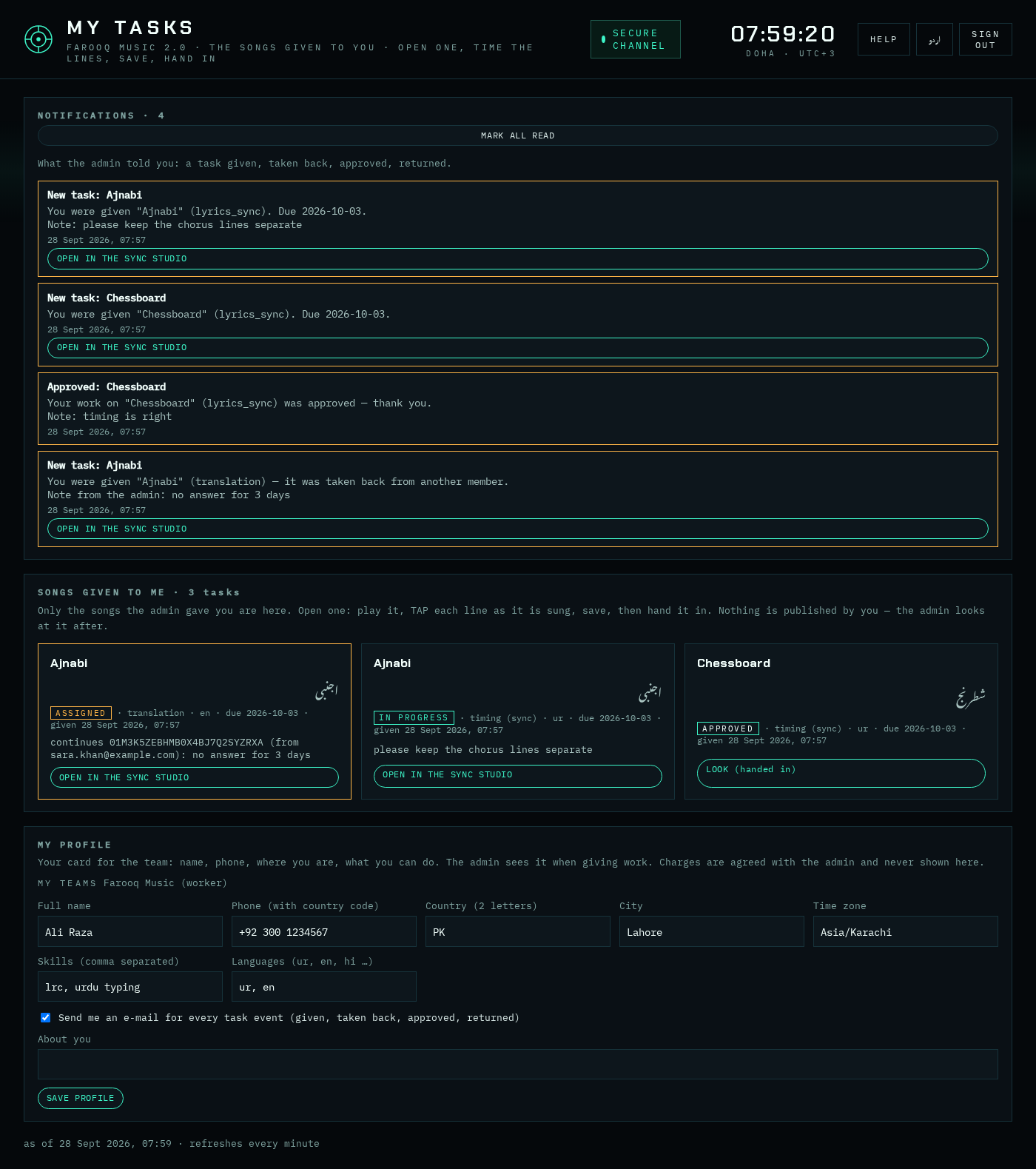
1 · Notifications
At the top: what the admin told you — a task given, taken back (with the reason), given to someone else, approved, returned, and the welcome when you joined. Unread ones have an orange edge; MARK ALL READ clears them. A task notification has an open button.
Every one of these also comes by e-mail in your language. Do not want the mails? Untick Send me an e-mail for every task event in My profile — the page notifications always stay.
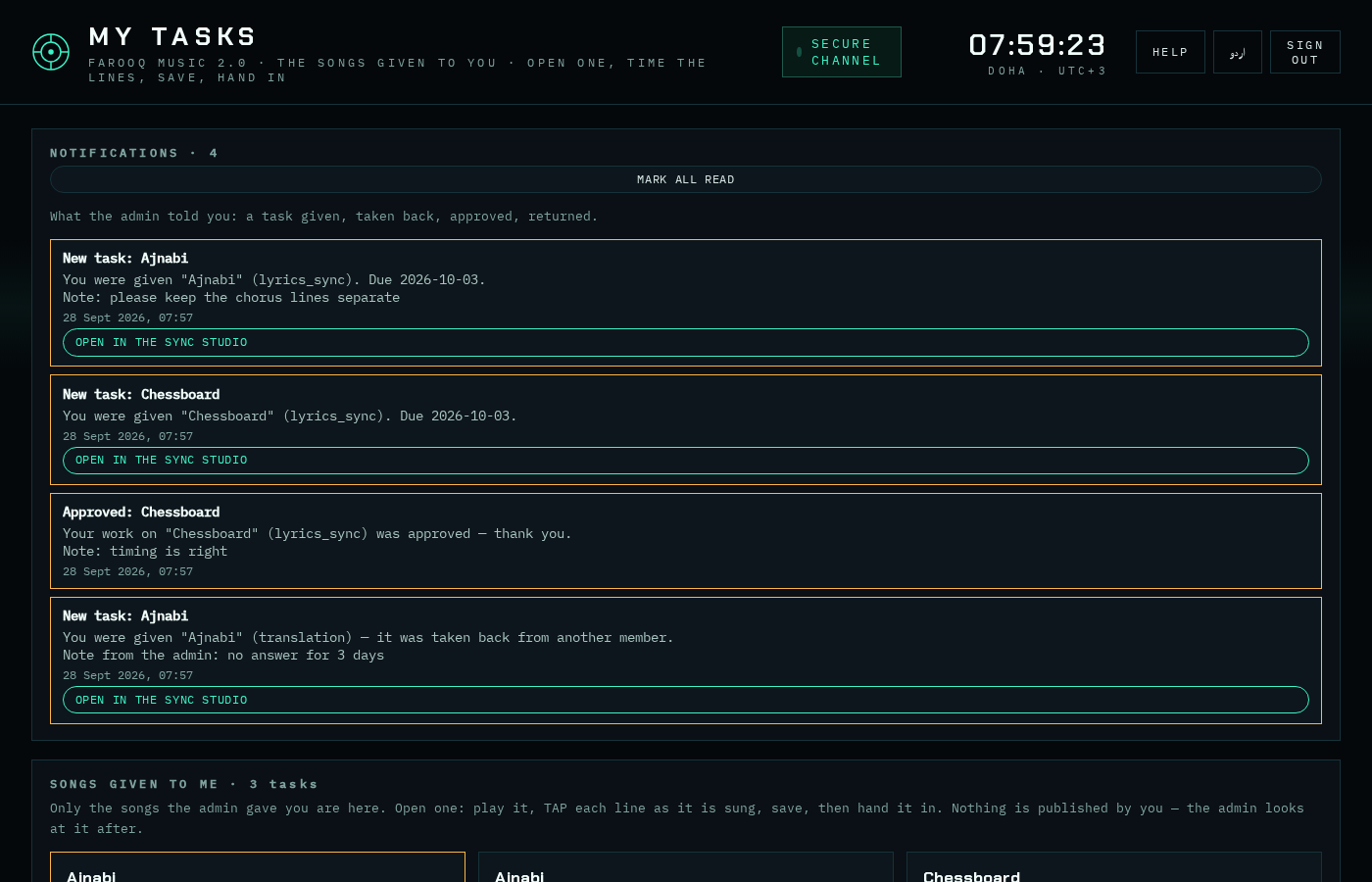
2 · Songs given to me
One card per task: the song, the kind of work, the state, the due date, the admin's note. open goes to the Sync Studio for that song; after handing in, look shows what you sent.
3 · My profile
Your card for the team: full name, phone (with country code), country, city, time zone, skills, languages, a few words about you. The admin sees it when giving work. SAVE PROFILE. Charges are agreed with the admin and are never shown here.
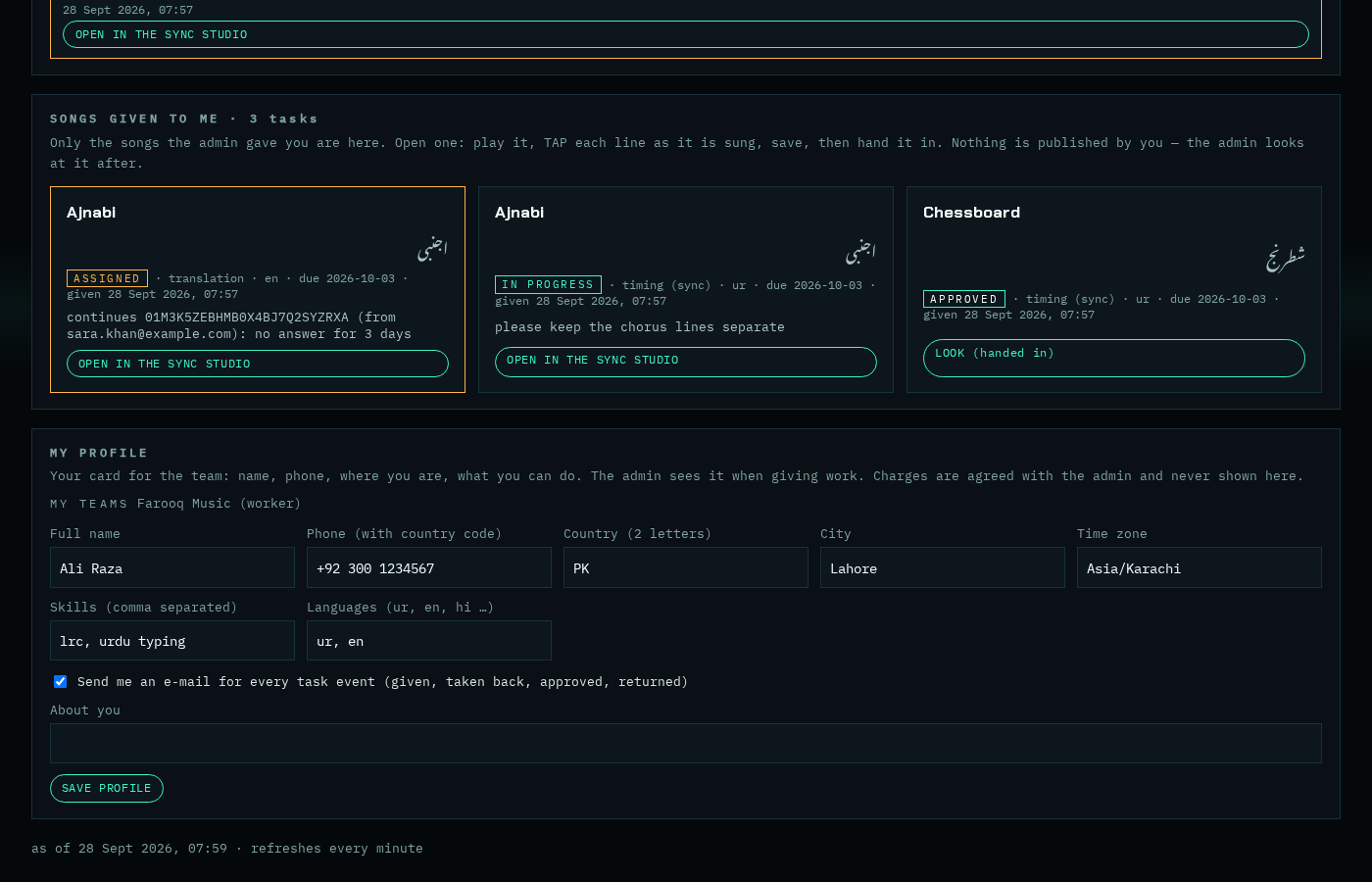
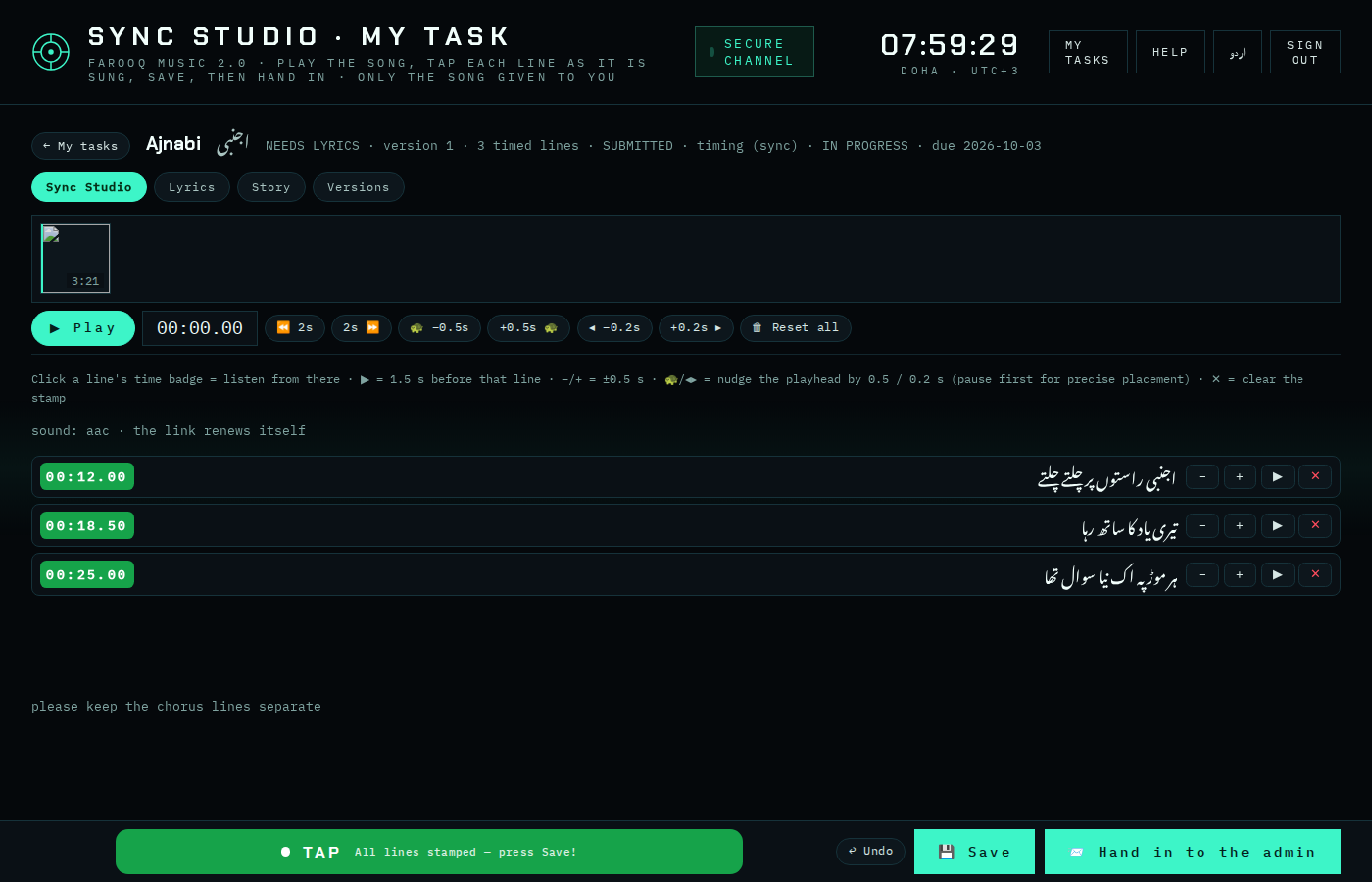
4 · The Sync Studio
Play the song, TAP each line at the moment it is sung (or type the time), fix with the small ± buttons, save as often as you like (the admin sees a pending version, nothing is published), and HAND IN when done. The admin then approves it — or returns it with a reason, and it comes back to this list as RETURNED.
Auto sync (new 29 Oct 2026). On a timing task the Sync Studio has the button ✦ Auto sync: the engine gives every line a time in a few minutes, and the lines it is not sure about are yellow. Listen to the yellow lines, fix them, save and hand in — see Auto sync.
5 · Hand in in one press — and giving a task back (new 1 Oct 2026)
Hand in first saves what is on your desk, then hands it in — you no longer see "nothing to hand in yet". The artist approves it (it moves to Done) or returns it with a reason (Returned).
If a task came to you by mistake, or you cannot do it, press ↩ Give the task back, write the reason and confirm. It leaves your list at once; the artist and the team's leaders are told and can give it to someone else.
At the top of My tasks you see You are: — your place in every team (for example Team leader · Farooq Music). The same line is in your account menu and on your profile.