Administration
Server watch — alerts, the status page and what to do when something breaks
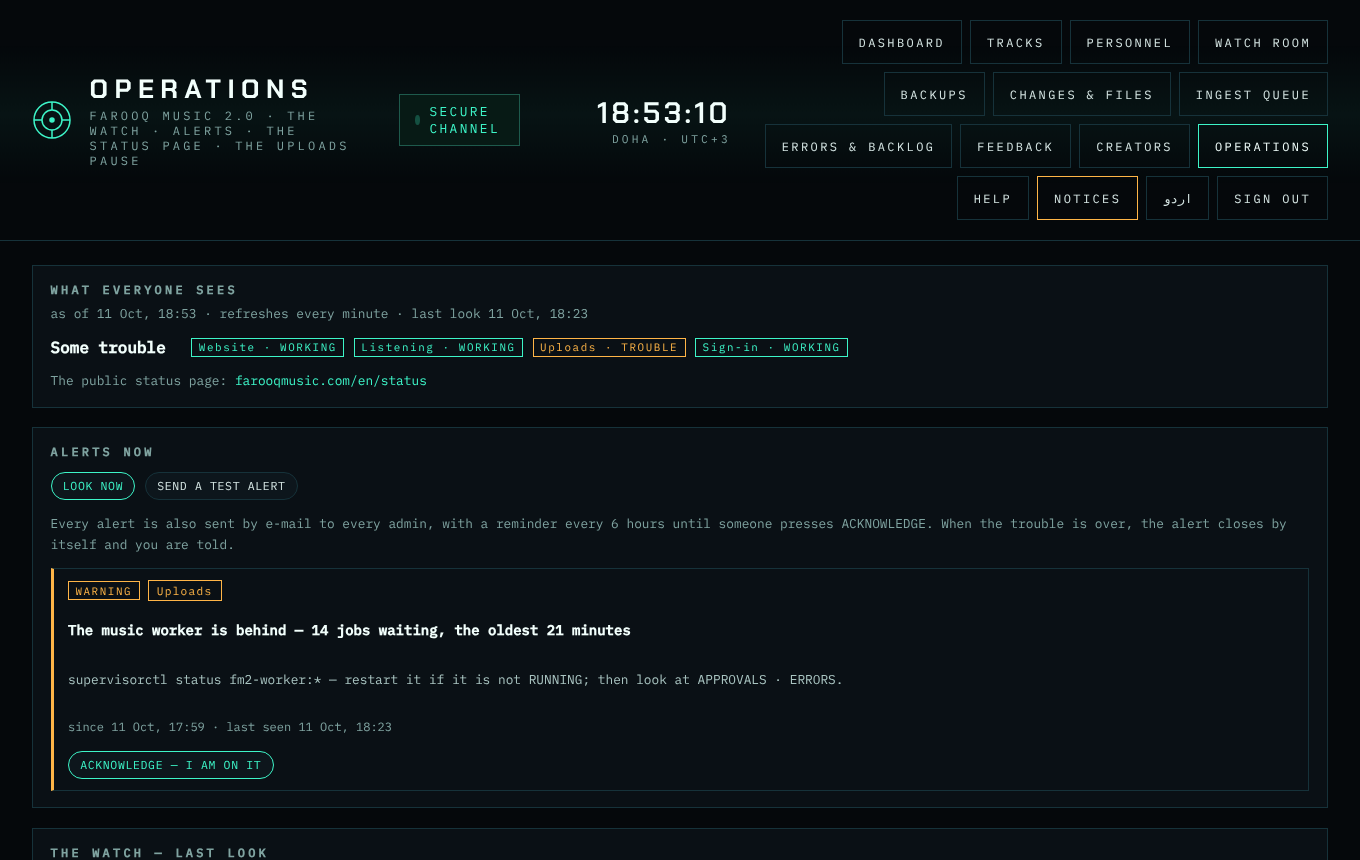
What it is. The server looks at itself every 5 minutes and tells every admin by notice + e-mail when something is wrong — and again when it is over. The admin page Server watch (group Server of the side menu) shows the same, plus the tools for a bad moment: a notice on the public status page, and a switch that pauses uploads.
What the watch looks at
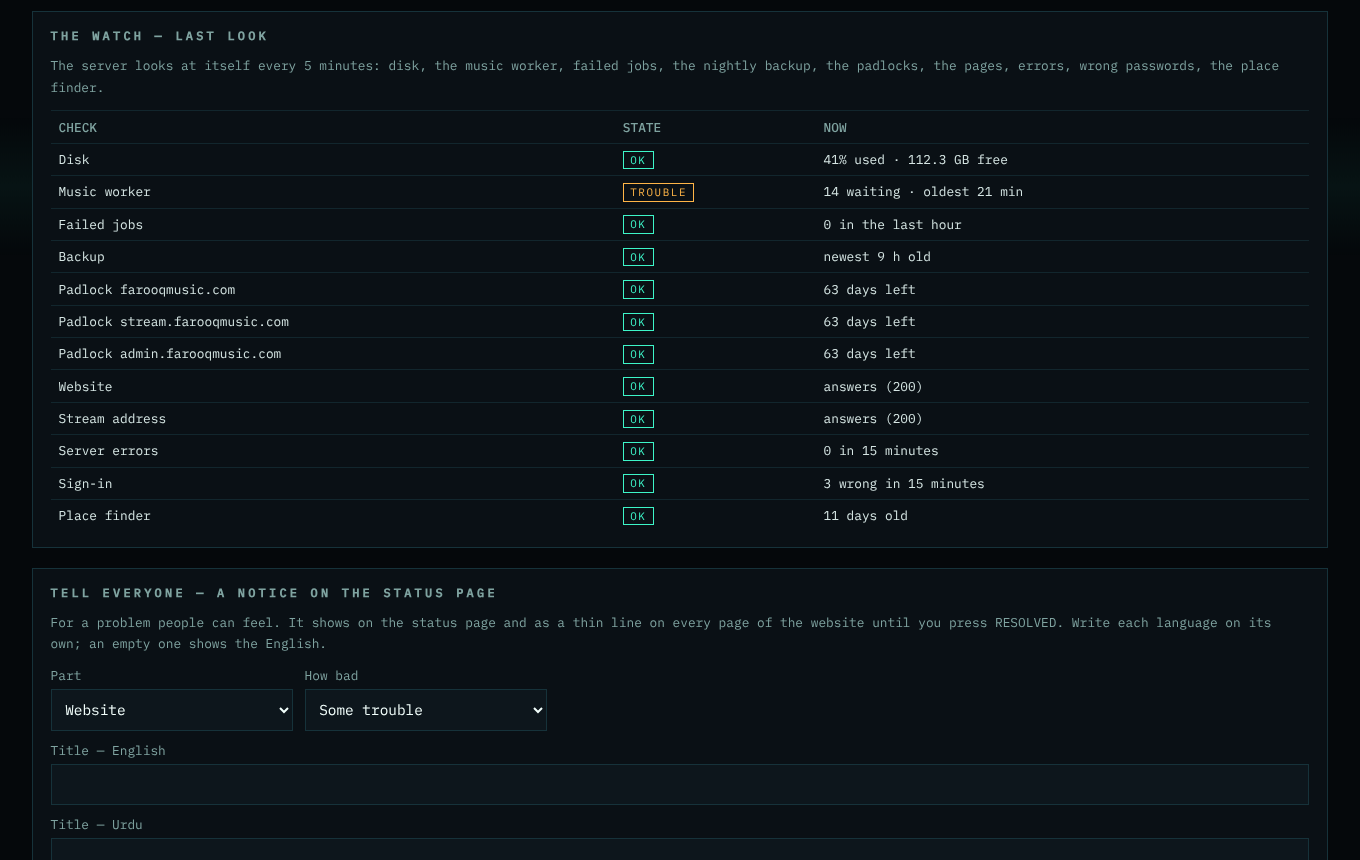
Disk space · the music worker (new songs, pictures and mails waiting) · failed jobs · the nightly backup · the padlocks (TLS) of farooqmusic.com, the stream and the admin address · the website and the stream answering · server errors · wrong passwords (someone guessing) · the place finder's monthly refresh. THE WATCH — LAST LOOK shows each one now; LOOK NOW looks at once.
When an alert comes
- Open the e-mail's link (it opens Server watch). Read what is wrong under ALERTS NOW.
- Press ACKNOWLEDGE — I AM ON IT: the reminders (every 6 hours) stop for that alert.
- If people can feel it (pages slow, songs not playing, uploads failing), post a notice (Step below) so they know you know.
- Fix it — the alert's own line says where to look (for example supervisorctl restart fm2-worker:* for the music worker, Backups → BACK UP NOW for an old backup).
- When it works again the alert closes by itself and you get a "✅ Over" e-mail. Then press RESOLVED on your notice.
Tell everyone — a notice on the status page
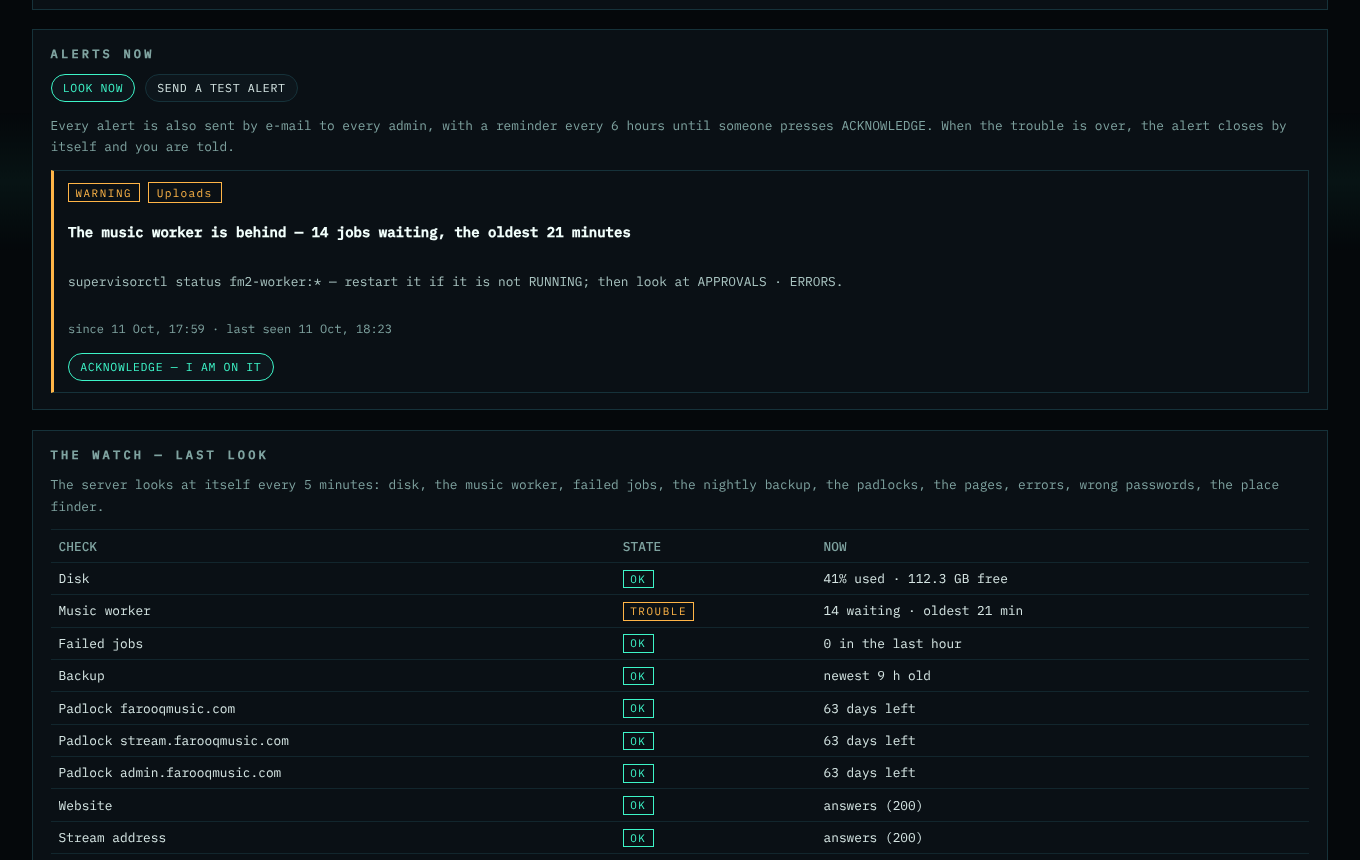
Under TELL EVERYONE: choose the part (website, listening, uploads, sign-in) and how bad (some trouble · not working · information), write the title and a few words in English, Urdu and Arabic (an empty language shows the English), and press PUBLISH THE NOTICE. It appears at once on farooqmusic.com/…/status and as a thin line on top of every page. RESOLVED moves it to "the last 30 days".
Pause uploads
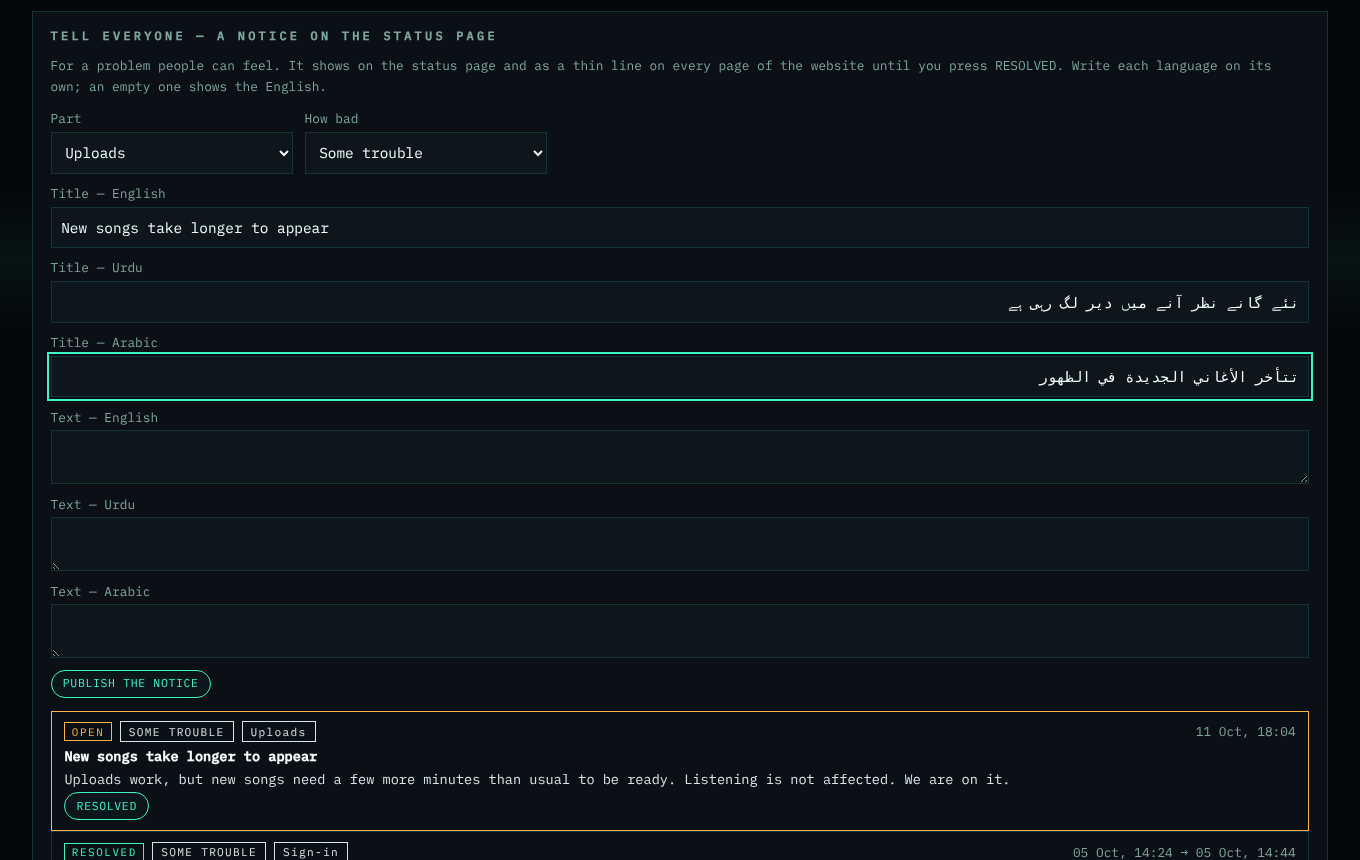
The incident switch: tick Uploads are paused, write a short note in each language, SAVE. No new sound reaches the platform until you untick it; your own uploads still work; listening is never touched. The status page shows "Uploads — trouble" while it is on.
Test the road
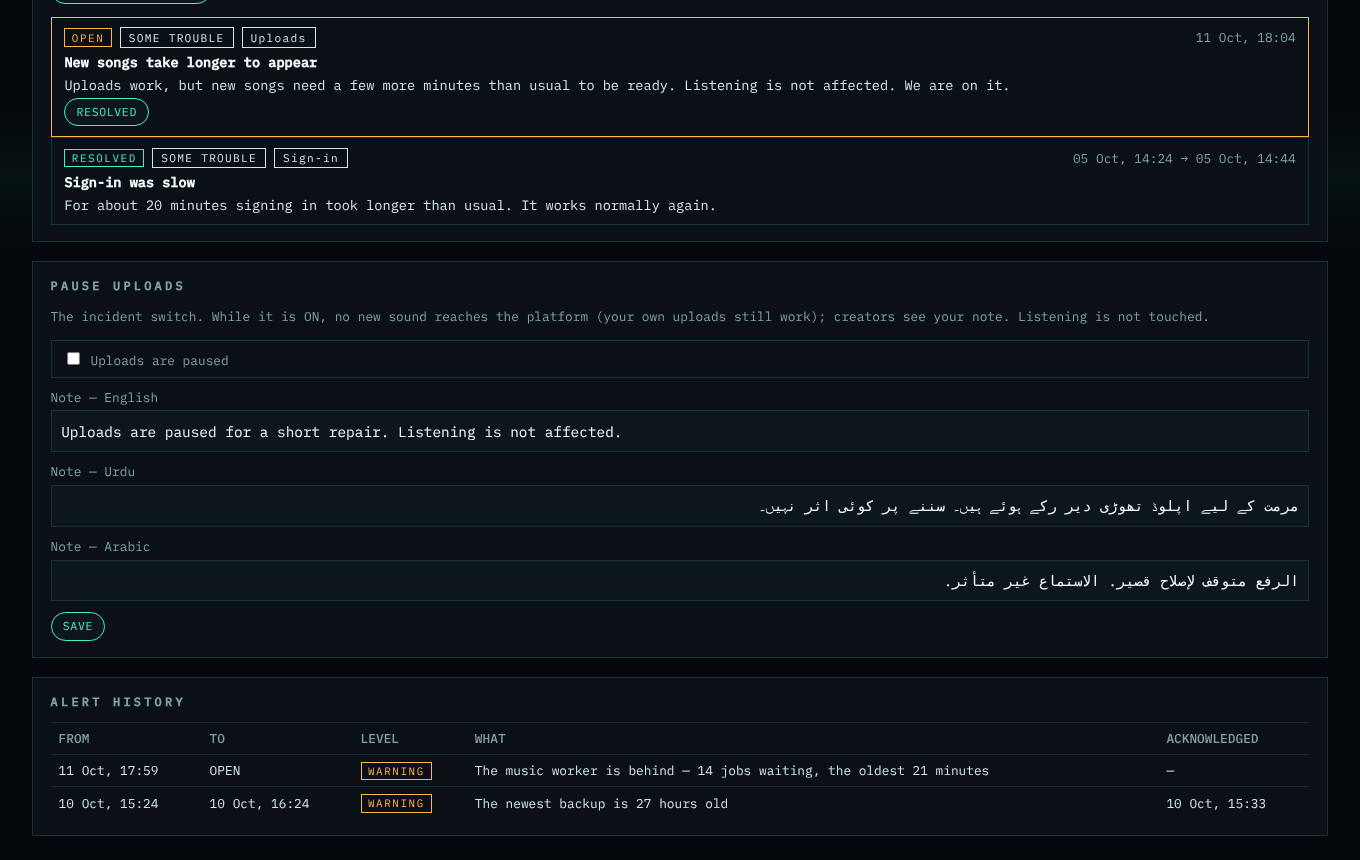
SEND A TEST ALERT sends you one notice + e-mail. If it arrives, real alerts arrive the same way. Do it once after the package goes live.
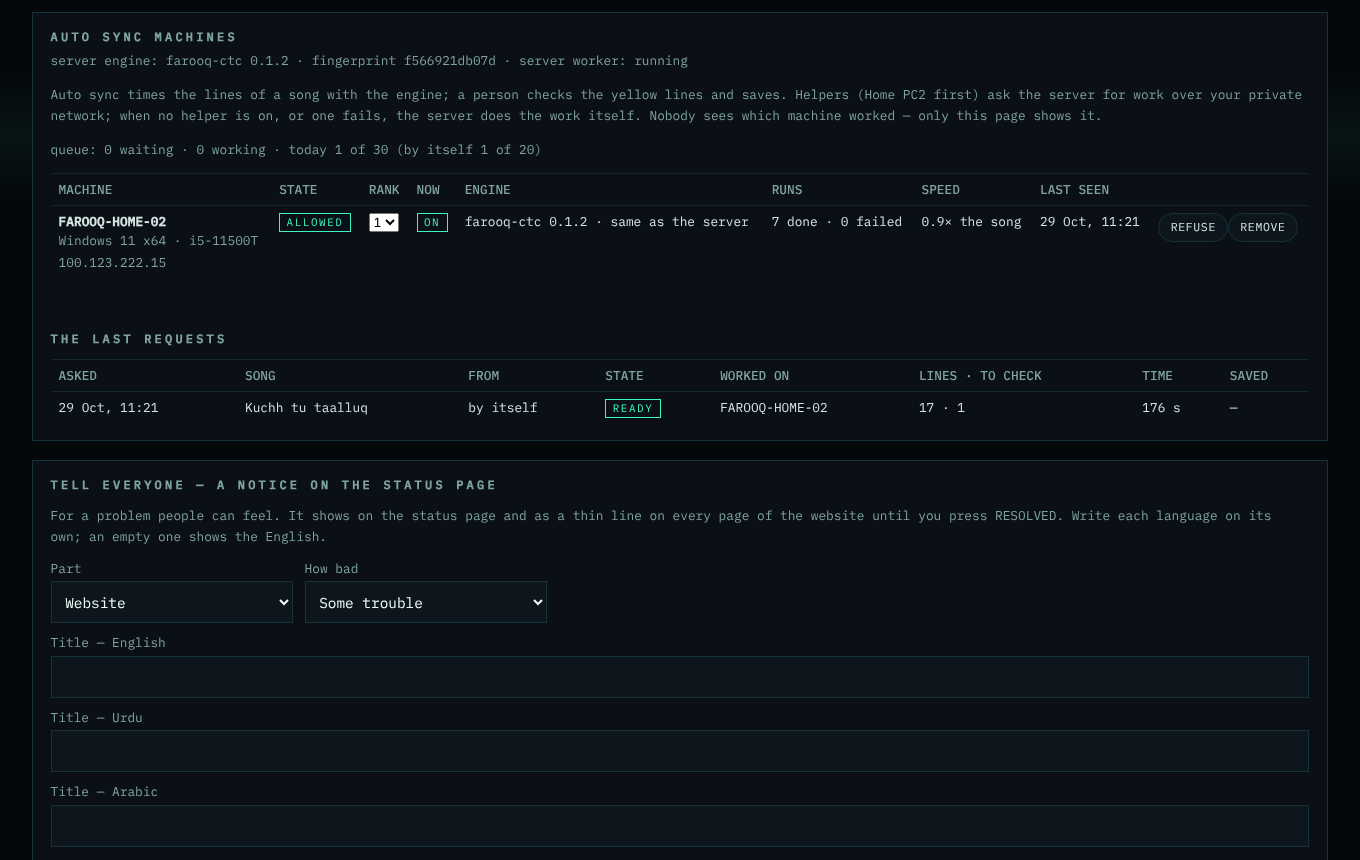
Auto sync machines (new 29 Oct 2026)
Auto sync times the lines of a song with the engine, and a person checks the yellow lines and saves (see Auto sync). The work is done by helpers first — Home PC2, which asks the server for work over your private network — and by the server itself whenever no helper is on, a helper stops answering, or a helper's answer does not fit. Nobody using the site sees which machine worked; this section is the only place that shows it.
- A new machine appears here as WAITING FOR YOU after its INSTALL-HELPER.bat ran. Press ALLOW only for your own machine. REFUSE keeps it out; REMOVE deletes it (its key stops working).
- RANK — 1 is asked first. When a bigger machine comes, give it rank 1.
- The top line also says whether the server worker is running (the server's own share of the work). Under each machine's name: its system and its private address — so two machines with the same name can be told apart before you press ALLOW.
- NOW shows ON / OFF / WORKING; ENGINE must say same as the server — a machine with another engine gets no work (update its engine). SPEED is the machine's time per second of song.
- THE LAST REQUESTS shows every request: who asked (Studio, a worker, or by itself for a song without timing), its state, the machine that worked, the lines and how many to check, and whether the suggestion was saved.
- When an allowed machine is silent for 30 minutes you get one notice; the server does the work meanwhile.
The incident steps (short)
- See — the alert or a person's message. 2. Tell — acknowledge; post a notice if people feel it. 3. Stop the harm — pause uploads, block an address (Security), take a song down. 4. Fix — the steps in the alert, or ask Claude with the alert's words. 5. Check — LOOK NOW until it is green. 6. Close — resolve the notice. 7. Learn — one line in Nizam (what, why, what changed). The full procedure is in the project's documents (Incident procedure).
The pictures show example accounts and numbers.